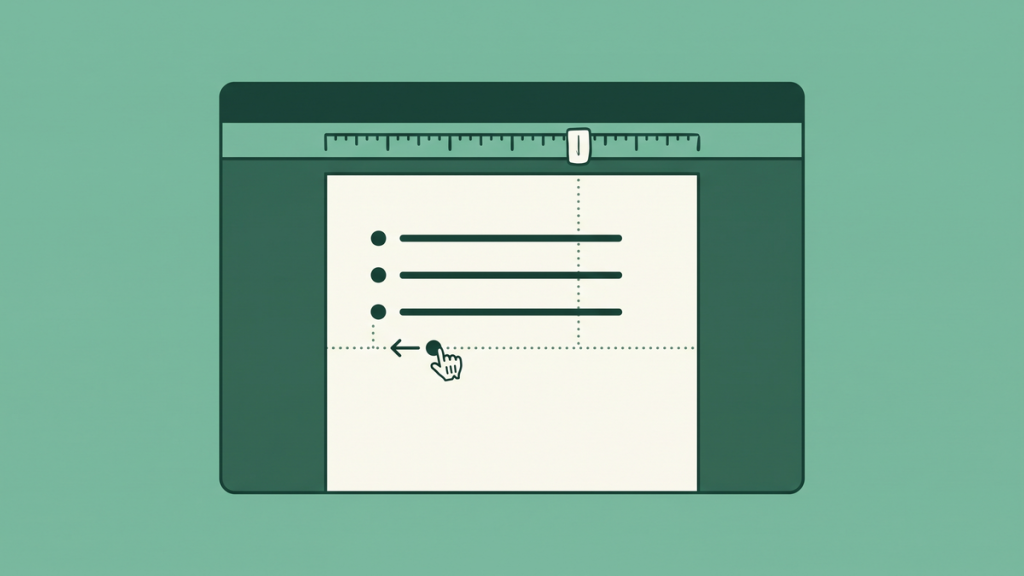
The first bullet looks right. The second moves farther across the page. The third has a huge gap after its symbol. Before adding spaces to force them into line, check whether Word is working with one real list or several differently formatted paragraphs.
To add bullet points in Word, select the paragraphs and choose Home > Bullets. Put each intended item in its own paragraph. Word then manages the bullet symbol and indentation together, which is more reliable than typing a dot and several spaces yourself.
The instructions below focus on desktop Word. The basic list controls also appear in other versions, but some advanced indentation options and menu labels differ.
I already typed the text. Can I turn it into a list?
Yes. Put each item on a separate paragraph, select the text, and use the Bullets button on the Home tab. The small arrow beside it opens the available bullet styles.
Microsoft’s list-creation instructions cover both existing text and automatic list creation. For a new list, Word can also recognize an asterisk followed by a space when automatic list formatting is enabled.
Try this small practice list:
- Confirm the meeting room.
- Send the agenda.
- Test the presentation.
Press Enter after an item to create the next one. When the list is finished, turn off Bullets or press Enter again from an empty list item. Avoid leaving an empty bullet at the end of the document.
If the automatic asterisk method does nothing, use the toolbar. It does not depend on remembering which automatic formatting options are enabled.
Why did several lines get only one bullet?
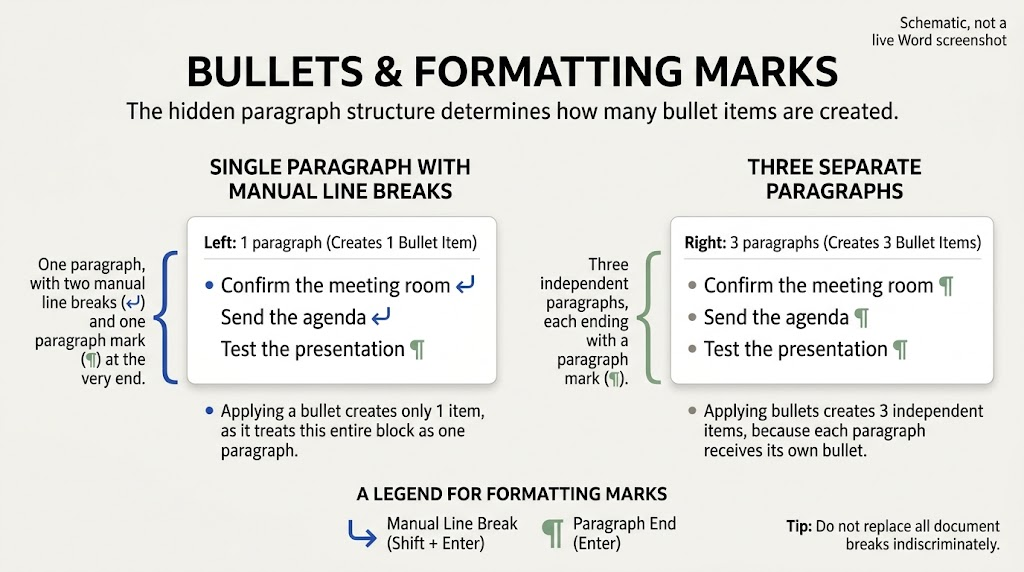
A visible line is not always a separate paragraph. Text can wrap automatically when it reaches the margin. A manual line break can also create another visible line while keeping the text inside the same paragraph.
Turn on Home > Show/Hide, the paragraph-mark button, to inspect the structure. A paragraph mark indicates the end of a paragraph. A manual line-break mark indicates a different kind of break.
For a list with three independent items, you normally need three paragraphs. If the items were separated with Shift+Enter, Word may treat them as one item with several lines.
Do not replace every break in a long document blindly. A line break inside an address or a deliberately continued bullet may be correct. Repair the affected list first, then inspect the result.
The second line does not line up with the text
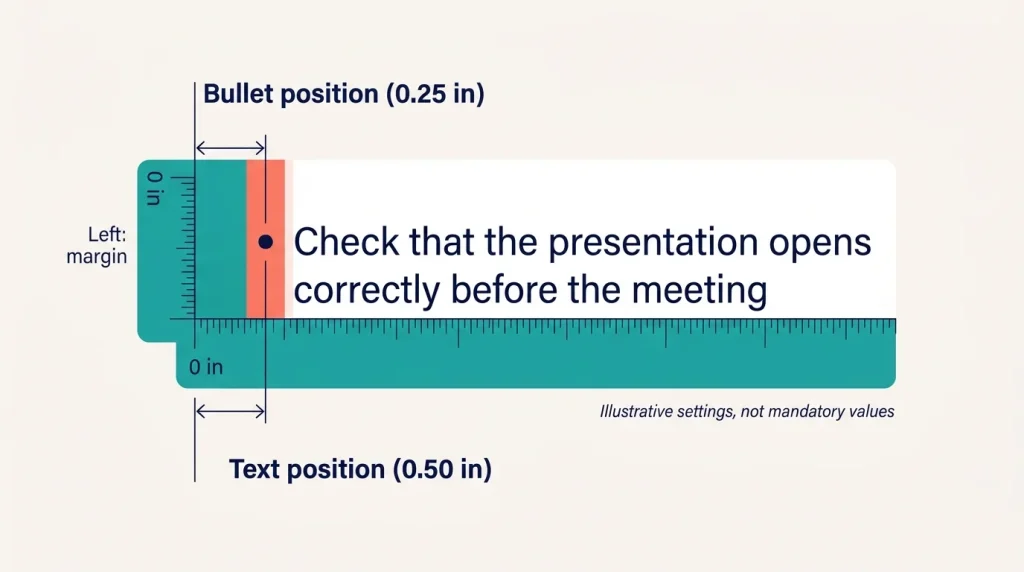
This is an indentation problem, not a reason to insert spaces. In a well-formed bullet, the symbol sits to the left and wrapped lines align with the beginning of the text.
That arrangement is called a hanging indent. The first line begins farther left than the continuation lines because it contains the bullet.
In desktop Word for Windows, right-click a bullet and look for Adjust List Indents. The controls distinguish the bullet position from the text position. Choose consistent values for the selected list rather than moving each line separately.
For example, you might place the bullet at 0.25 inches and the text at 0.5 inches from the left margin. Those are illustrative settings, not mandatory values. The appropriate indent depends on your page layout and document style.
Why is there a large gap after one bullet?
A tab stop, a different list definition, or pasted formatting can create an unusually wide gap. First select the affected list and compare its indentation with a correctly formatted list.
Do not fix the gap by repeatedly pressing Backspace or adding spaces. That can remove part of the list formatting or create alignment that breaks as soon as the text wraps.
A controlled repair is to remove bullet formatting from the affected paragraphs, remove accidental leading tabs or spaces, and reapply one bullet style to the whole selection. Save a copy first if the document has complex formatting.
Then check a long item that wraps onto a second line. It is a better test of the repair than a short item because it reveals whether the continuation text is aligned properly.
How do I add a sub-bullet?
A sub-bullet should explain or support the item above it. Place the cursor in the intended paragraph and use the list-level or indentation controls to move it inward. Tab and Shift+Tab can also change levels in some list contexts, but their behavior depends on where the cursor is and how Word is configured.
Use the toolbar when a shortcut inserts a tab character instead of changing the level. For more complex structures, a properly defined multilevel list is more reliable than repeatedly adjusting individual paragraphs.
Consider this outline:
- Prepare the room.
- Check the projector.
- Place the handouts.
- Welcome the participants.
- Explain the first activity.
The two indented items belong under room preparation. They are not separate tasks at the same level as welcoming participants. Indentation communicates that relationship.
Avoid nesting merely to make a list look sophisticated. If you need several levels, headings and shorter lists may be easier to read.
The spaces between bullets are inconsistent
Line spacing and paragraph spacing are different settings. Line spacing affects the lines within a paragraph. Space before or after affects the distance between paragraphs, including list items.
Select all the relevant items before changing spacing. Otherwise, one bullet may receive a new setting while the others keep the old one.
Also check for empty paragraphs between bullets. Two lists that look equally spaced on one page can behave differently when one uses paragraph spacing and the other uses blank lines.
For a reusable report, define a consistent list style rather than correcting every list manually. The goal is not a particular spacing number; it is a clear, stable relationship between items.
A repair checklist for pasted lists
|
What you see |
What to inspect |
Better repair |
|---|---|---|
|
One bullet before several intended items |
Manual breaks versus paragraphs |
Give independent items separate paragraphs |
|
Wrapped text starts under the symbol |
Hanging indent |
Set a consistent text position |
|
A large gap after a bullet |
Tab stops and list indents |
Reapply one list definition |
|
One item has a different symbol |
Pasted formatting |
Apply the same bullet style to the selection |
|
Extra blank space between some items |
Empty paragraphs and paragraph spacing |
Remove accidental blanks and standardize spacing |
Work on a small selection before changing the whole document. That makes it easier to undo a change and understand which setting caused the problem.
Keep the writing as consistent as the formatting
A neatly aligned list can still be difficult to read if its items use different structures. Compare “Room booking,” “Send invitations,” and “The equipment needs testing.” They mix a noun phrase, an instruction, and a statement.
A parallel version is clearer: “Book the room,” “Send invitations,” and “Test the equipment.”
Merriam-Webster’s bullet-point guidance explains why consistent structure and punctuation help a list. Use complete sentences with sentence punctuation, or keep short fragments consistent with the style of your document.
For ordered instructions, use numbering instead of bullets. If the reader must do step one before step two, the numbers communicate information that identical bullet symbols do not.
Before sharing the file
Inspect the document in its final viewing format. Check a long bullet, a nested item, and a list that crosses a page boundary. Make sure no heading has become a bullet accidentally and no empty item remains at the end.
If the document will be pasted into WordPress or another editor, use real list formatting and review the pasted result. Do not assume decorative symbols typed by hand will become a functional list.
Once the paragraphs, list levels, and indents are correct, Word can do the alignment work for you. You should be editing the message, not rebuilding the layout with spaces after every change.