To turn off auto capitalization, change the setting in the app or keyboard that is adding the capital letters. In desktop Word, this is normally an AutoCorrect option. On an iPhone, it is in Keyboard settings. On a Samsung phone, it is in Samsung Keyboard’s typing options.
You do not usually need to disable spell-check or every AutoCorrect feature. Switch off the capitalization rule you do not want, then test it in the app where the problem happens.
Find out what is changing your text
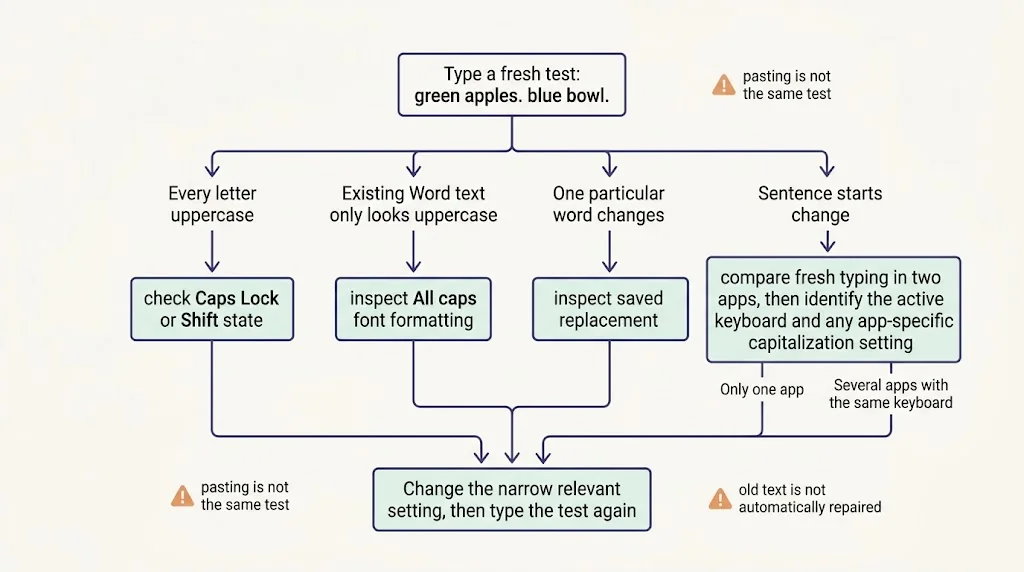
Before changing settings, notice the pattern.
|
What happens |
What to check first |
|---|---|
|
The first letter changes after a period |
Automatic sentence capitalization |
|
Every letter you type is uppercase |
Caps Lock or the keyboard’s Shift state |
|
A particular name keeps changing |
A text replacement or learned correction |
|
Existing text looks uppercase in Word |
Font effects such as All caps |
|
Only one app changes your letters |
That app’s own correction settings |
For example, if you type hello. next and Word changes next to Next, sentence capitalization is a likely cause. If hello becomes HELLO immediately, check Caps Lock before editing AutoCorrect.
Changing a setting affects future typing. It does not automatically repair text you have already written.
Turn off auto capitalization in Word for Windows
In desktop Word:
- Open File > Options.
- Select Proofing.
- Choose AutoCorrect Options.
- Open the AutoCorrect tab.
- Clear Capitalize first letter of sentences.
- Select OK, then close the Options window with OK.
The Microsoft AutoCorrect options guide lists several separate capitalization controls. They are not all the same switch.
For instance, Word can have a separate setting for Capitalize first letter of table cells. If lowercase labels still change inside a table, check that option too. Capitalize names of days controls words such as monday, while Correct TWo INitial CApitals addresses a different typing mistake.
Leave Replace text as you type enabled when you still want its other replacement features. Turning off that entire feature is a broader change than disabling sentence capitals.
Test the change
Open a blank document and type this manually:
green apples. blue bowl.
With automatic sentence capitalization disabled, Word should not change green or blue to capitals merely because they begin sentences. You can still use Shift to capitalize them yourself.
Type the test rather than pasting it. Correction rules that run during typing may not run in the same way on pasted text.
Turn off auto capitalization in Word for Mac
In desktop Word on a Mac, open the Word menu and look for Preferences or Settings, depending on your version. Open AutoCorrect, then clear Capitalize first letter of sentences.
Review the separate table-cell or day-name options only if those are also causing a problem. Close the settings and type the test sentence again.
The distinction between Word settings and macOS settings matters. Changing a system-wide typing preference does not necessarily change an app’s independent AutoCorrect rules.
What about Word in a browser or on a phone?
The desktop menu paths do not apply unchanged to Word for the web. Its AutoCorrect controls are more limited and are accessed through its editing tools rather than File > Options.
On a phone, the on-screen keyboard may be doing the capitalization before Word receives the text. Start with the keyboard setting below. If the behavior happens only in Word, check the app’s available editing settings as well.
Turn off auto capitalization on an iPhone
For Apple’s on-screen keyboard:
- Open Settings.
- Select General > Keyboard.
- Turn off Auto-Capitalization.
- Return to your writing app and type a new sentence.
Apple’s on-screen keyboard guide explains where to manage keyboard typing features. Auto-Capitalization is separate from Auto-Correction and predictive suggestions, so you can keep those features on.
Turning this setting off does not remove the Shift key. You can still capitalize an individual letter manually. If all letters remain uppercase, check whether Caps Lock is active.
A third-party keyboard can have its own preferences. Confirm which keyboard is active before assuming a change to Apple’s keyboard will apply to every keyboard you use.
Turn off auto capitalization on a Samsung phone
For Samsung Keyboard, the usual route is:
Settings > General management > Samsung Keyboard settings > More typing options
Turn off Auto capitalise or the equivalent capitalization label shown on your device. Samsung documents this route in its keyboard personalization instructions.
Labels can differ by software version and language. Do not turn off Predictive text or Auto replace just because those controls are nearby. They serve different purposes.
Other Android keyboards, including Gboard
Check the keyboard you are actually using. Open its settings from the keyboard’s gear icon, where available, or through your phone’s keyboard settings.
Look for a capitalization switch within typing or text-correction options. The phone manufacturer’s menu and a third-party keyboard’s menu are not interchangeable. For example, changing Samsung Keyboard settings will not configure Gboard when Gboard is the active keyboard.
If you cannot find the control, use the keyboard’s own help for your installed version rather than resetting every keyboard setting.
If the setting is off but capitals still appear
Work through these checks one at a time.
Check the active keyboard. You may have changed one keyboard’s settings while typing with another.
Check for a saved replacement. A specific word that changes every time may be coming from a replacement entry, not sentence capitalization. Review that entry instead of disabling unrelated features.
Check the text’s formatting in Word. A font effect can display letters as capitals without the same operation as converting the underlying text. Select a small sample and inspect the Font settings before changing the entire document.
Compare two apps. Type the same short test in a plain notes app and in the app where the problem occurs. If only one behaves differently, investigate that app’s settings.
Test fresh typing. Previously capitalized text stays as it was. Reopening an old paragraph is not a useful test of a future-typing setting.
Fix text that is already capitalized
For ordinary prose in Word, select a small passage and use Home > Change Case. Review the result before changing a long document.
You can also use the NavigationHubs Case Converter for a copied passage that needs uppercase or lowercase conversion. That tool changes text; it does not change your phone or Word settings.
After converting to lowercase, restore proper names and the pronoun I where needed. Avoid applying a bulk conversion to passwords, reference codes, or other case-sensitive values.
Frequently asked questions
Can I keep spelling correction but stop automatic capitals?
Usually, yes. Use the specific capitalization switch rather than disabling every correction feature. Word and phone keyboards expose several controls separately.
Will this change the capitalization of old documents?
No. Turning off automatic capitalization normally changes what happens during future typing. Existing text requires a separate edit.
Why does Word still capitalize text inside a table?
Desktop Word can apply a separate table-cell capitalization rule. Check Capitalize first letter of table cells, not just the sentence-capitalization option.
The best fix is the narrowest one: identify the app or keyboard responsible, change its relevant capitalization setting, and confirm the result with a short typing test.