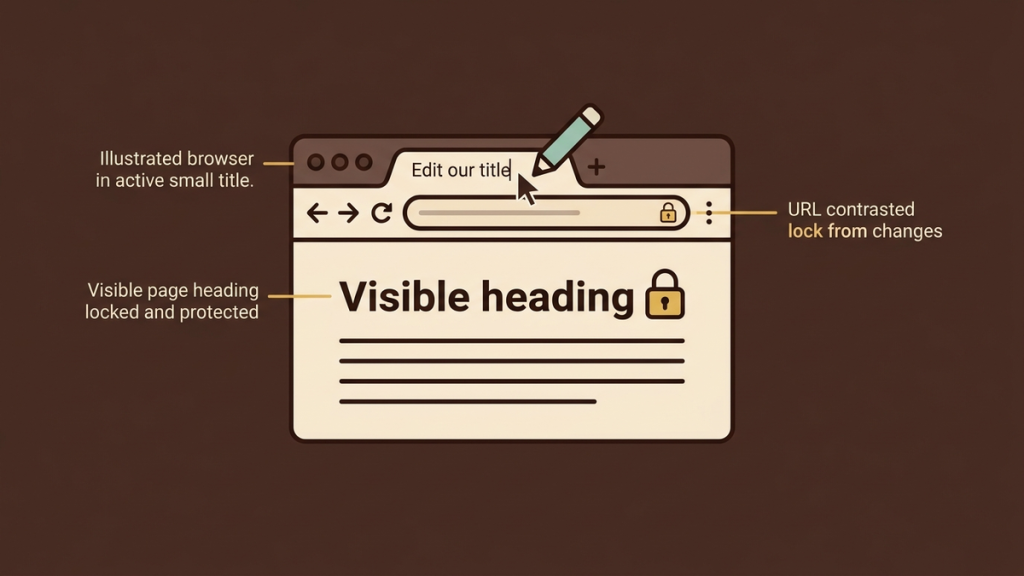
To change a page title tag in WordPress without changing the heading, edit the page’s SEO title field, not the main title at the top of the editor. An SEO plugin or your site’s built-in SEO tools can provide that separate field.
The SEO title controls the page’s HTML <title> element. The visible heading usually comes from the post or page title, often displayed as an H1. The two can be different while still describing the same content accurately.
Before editing, identify which component manages your site’s titles. You do not need to install a second SEO plugin just to find another title box.
Know which title you are changing
WordPress uses several pieces of text that can look like “the page title.”
|
Item |
Where it is used |
Change it for this task? |
|---|---|---|
|
Page or post title |
Usually the visible main heading |
No |
|
SEO title |
HTML title element and browser tab |
Yes |
|
Site title |
Name of the whole website |
No |
|
Navigation label |
Text inside a menu |
No |
|
URL slug |
The page’s address |
No |
A theme or page builder can manage the visible heading differently, so check the published page rather than assuming every site is identical.
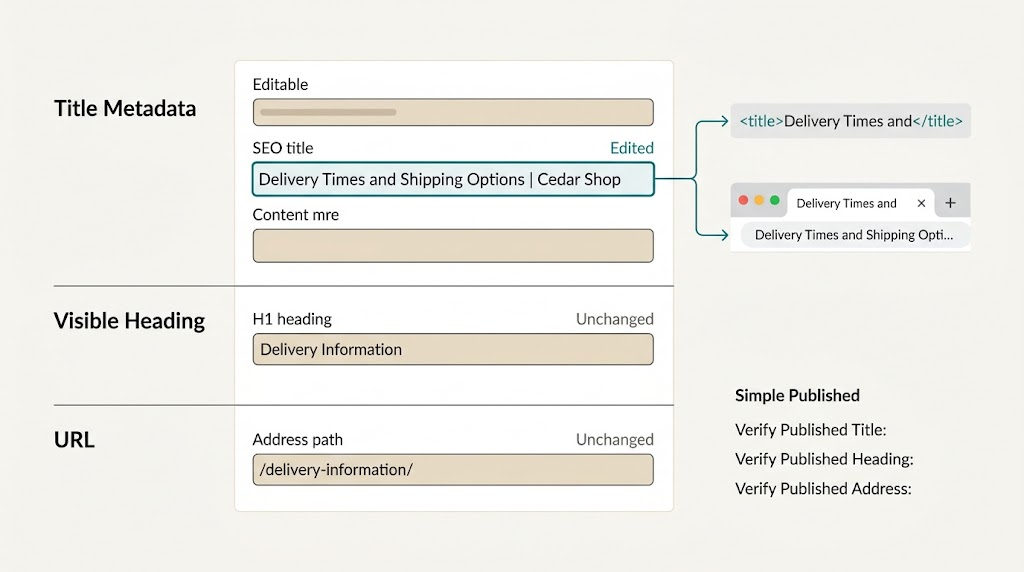
For a hypothetical shop, you might want:
Visible heading: Delivery Information
SEO title: Delivery Times and Shipping Options | Cedar Shop
URL: /delivery-information/
Only the SEO title needs to change. The page should still visibly say Delivery Information, and its address should stay the same.
Before you edit, record the current values
Open the published page and keep it in a separate browser tab. Note its address and visible heading. Then open the page in the WordPress editor.
Check whether the site uses an SEO plugin, such as Rank Math, Yoast SEO, or another installed tool. Use the component that already manages the title. Different plugins label their settings differently; a field called focus keyword is not the SEO title field.
The walkthrough below uses Rank Math as a concrete example. A separate section covers WordPress.com’s built-in tools.
Change the SEO title with Rank Math
In the WordPress block editor:
- Open the page or post you want to edit.
- Open the Rank Math panel, usually from its icon near the top right of the editor.
- In the General section, choose Edit Snippet.
- Edit the Title field.
- Save or update the page.
Rank Math’s SEO meta tags guide documents these controls. In the Classic Editor, the Rank Math settings are normally below the content rather than in the same sidebar position.
Leave the main page-title field and permalink alone. If the SEO title contains variables for the post title, separator, or site name, check the full preview before saving. You may need to replace the relevant variable rather than append a second copy of the same wording.
For example, entering Delivery Times | Cedar Shop while also leaving a site-name variable could produce a duplicated brand name. Inspect the finished output rather than only the words you just typed.
Using a different SEO plugin
Find that plugin’s page-level SEO title or snippet editor. Do not assume a tutorial for one plugin describes the exact buttons in another.
The important distinction stays the same: you want a per-page title override, not the main content heading, site identity, or global title template.
Change the title with WordPress.com’s built-in SEO tools
On a WordPress.com site with the relevant SEO features enabled, edit the page, open the Jetpack panel, expand the SEO section, and enter an SEO Title. Save the change.
WordPress.com’s SEO tools instructions explain availability and configuration. These controls depend on the site’s plan and setup, and an active SEO plugin can replace them. They are not a universal menu found on every self-hosted WordPress installation.
Also distinguish page-level editing from site-wide title structure. Changing a global structure can affect many pages at once. Use the individual page’s field when the task is to change only one page.
Verify the published title, heading, and URL
Saving a field is only the first check. Open the public page in a fresh browser tab and verify three separate results.
1. Inspect the title element
Use View Page Source in your desktop browser and search for <title. The finished HTML should contain the intended title, for example:
<title>Delivery Times and Shipping Options | Cedar Shop</title>
Look at the whole value. Check for an old title, a repeated site name, or more than one title element.
The browser tab is a useful quick check, but its visible text may be shortened. Page source lets you inspect the complete value.
2. Check the visible heading
Return to the page and confirm that the main heading still says Delivery Information.
If you are inspecting the HTML, the heading might look like this:
<h1>Delivery Information</h1>
A page builder may output the heading differently. The practical check is that readers still see the intended heading and that you have not accidentally added a second one.
3. Confirm the address is unchanged
Check that the page still uses the same URL. An SEO title change does not require a slug change.
Avoid changing the URL as a side effect of improving search copy. A deliberate URL change is a separate task that needs link and redirect planning.
Why Google might still show another title
The HTML title you publish is not a guarantee of the wording Google will display. Google’s title-link guidance describes how it can use the title element, visible headings, and other information when generating a result’s title link.
Google also needs an opportunity to recrawl changes. Do not repeatedly rewrite a working title merely because a search result has not changed immediately.
Separate two questions:
Is the website output correct? Check the published title element, heading, and URL.
What is Google choosing to display? That is a search-result question, not proof that WordPress failed to save the field.
Keep the SEO title and heading consistent in meaning. A search title promising a free downloadable template should not lead to a page that contains only general advice.
Troubleshooting a title that will not update
The page source still shows the old title: confirm you edited and saved the correct page. Check caching, then inspect the SEO component that controls the final output.
The site name appears twice: review both the page-level title and any automatically appended variables or global template.
The heading changed too: you may have edited the main page title rather than the SEO field. Restore the heading and locate the separate override.
Two title elements appear: a theme, plugin, or custom code may be competing to generate metadata. Resolve the duplication instead of adding another manual tag.
The editor has no SEO title field: check the site’s existing plugin or hosted-platform setup. Do not paste a <title> element into the article body; that is not the right place to configure the document head.
A useful title is specific, not stuffed
Compare Delivery Information | Cedar Shop with Delivery Times and Shipping Options | Cedar Shop. The second tells readers more, provided the page covers those subjects.
Avoid a title such as Shipping Delivery Shipping Times Best Delivery Shop. Repetition does not make the promise clearer.
You can review draft wording with our search preview tool. It does not inspect your WordPress installation or guarantee Google’s display, so still perform the published-source check.
The reliable workflow is simple: edit the SEO title field, leave the heading and slug alone, and verify all three on the published page.