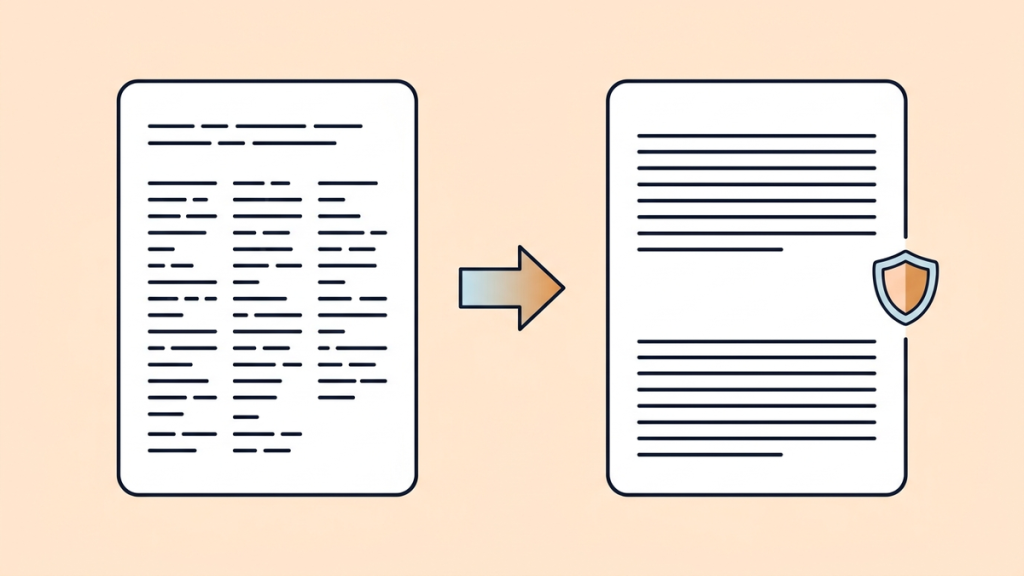
To remove unwanted manual line breaks in desktop Word, open Find and Replace, search for ^l (a caret followed by a lowercase L), and replace it with one space. Test a few matches first.
Do not replace every ^p in a document without checking it. That code represents paragraph marks. Removing them can merge headings, lists, addresses, and separate paragraphs into one block.
The safest method starts by identifying what kind of break you have. Sometimes the text is simply wrapping on screen, and there is no break character to remove.
Show the formatting marks before changing anything
Save a copy of the document. Then select the Show/Hide button, displayed as a paragraph symbol, on Word’s Home tab. Microsoft’s formatting-mark guide explains how to reveal nonprinting characters such as paragraph marks and tabs.
Look at the end of a short line. A bent-arrow symbol indicates a manual line break. A paragraph symbol indicates the end of a paragraph. If neither appears, the line may simply be wrapping because of the page width or margins.
|
What you see |
What it means |
What to do |
|---|---|---|
|
Text moves to another line with no break mark |
Automatic wrapping |
Usually leave it alone |
|
Bent-arrow mark |
Manual line break |
Consider replacing ^l with a space |
|
Paragraph symbol |
End of a paragraph |
Inspect whether the boundary is intentional |
|
Extra gap with no empty paragraph |
Paragraph spacing |
Adjust spacing, not break characters |
|
Labeled page or section break |
Document layout boundary |
Do not use this cleanup method on it |
These instructions are for the advanced Find and Replace features in desktop Word. The web version may not expose the same special-character options. Open the document in the desktop app when those controls are unavailable.
Remove manual line breaks using Find and Replace
Use this method when a single prose paragraph has been split into short lines, but its true paragraph ending should stay intact.
- Isolate the affected prose. For a small cleanup, copying it into a temporary document is safer than editing the entire original.
- Open Home > Replace. On Windows, Ctrl+H also opens the replacement dialog.
- Open the expanded options and make sure Use wildcards is off.
- Enter ^l in Find what and a single ordinary space in Replace with.
- Use Find Next and Replace to inspect the first few changes.
- Use Replace All only after confirming that all matching breaks in the chosen scope should be removed.
On a Mac, use the Find and Replace controls or Advanced Find & Replace from the navigation/search options. Avoid assuming that Command+H opens replacement; it can hide the application.
Microsoft’s Find and Replace instructions explain the Special menu, which inserts codes for you. Choosing Manual Line Break from that menu avoids confusing lowercase l, uppercase I, and the digit 1.
Why replace with a space instead of nothing?
Consider this text. The bracketed labels below explain the breaks; they are not literal text from Word.
Before:
Clear instructions help[manual break]
readers finish the task.[paragraph]
After replacing ^l with one space:
Clear instructions help readers finish the task.[paragraph]
An empty replacement would join help and readers as helpreaders. A space preserves the word boundary. If a space already exists beside the break, you may get a double space, which you can review afterward.
When each copied line ends with a paragraph mark
Text copied from another source may use ^p at the end of every visual line. Word cannot know which marks are genuine paragraph boundaries and which were inserted by the original layout.
There are two different cases:
Case A: true paragraphs are separated by one empty paragraph. You may be able to protect those double paragraph marks before joining the single ones.
Case B: every line ends with one paragraph mark, with no reliable distinction. There is no safe universal Replace All rule. Review the text paragraph by paragraph and preserve boundaries using the meaning of the passage.
Do not apply a double-break shortcut to headings, numbered lists, poetry, code, or addresses. Those layouts often use single breaks intentionally.
Protect real paragraphs before joining short lines
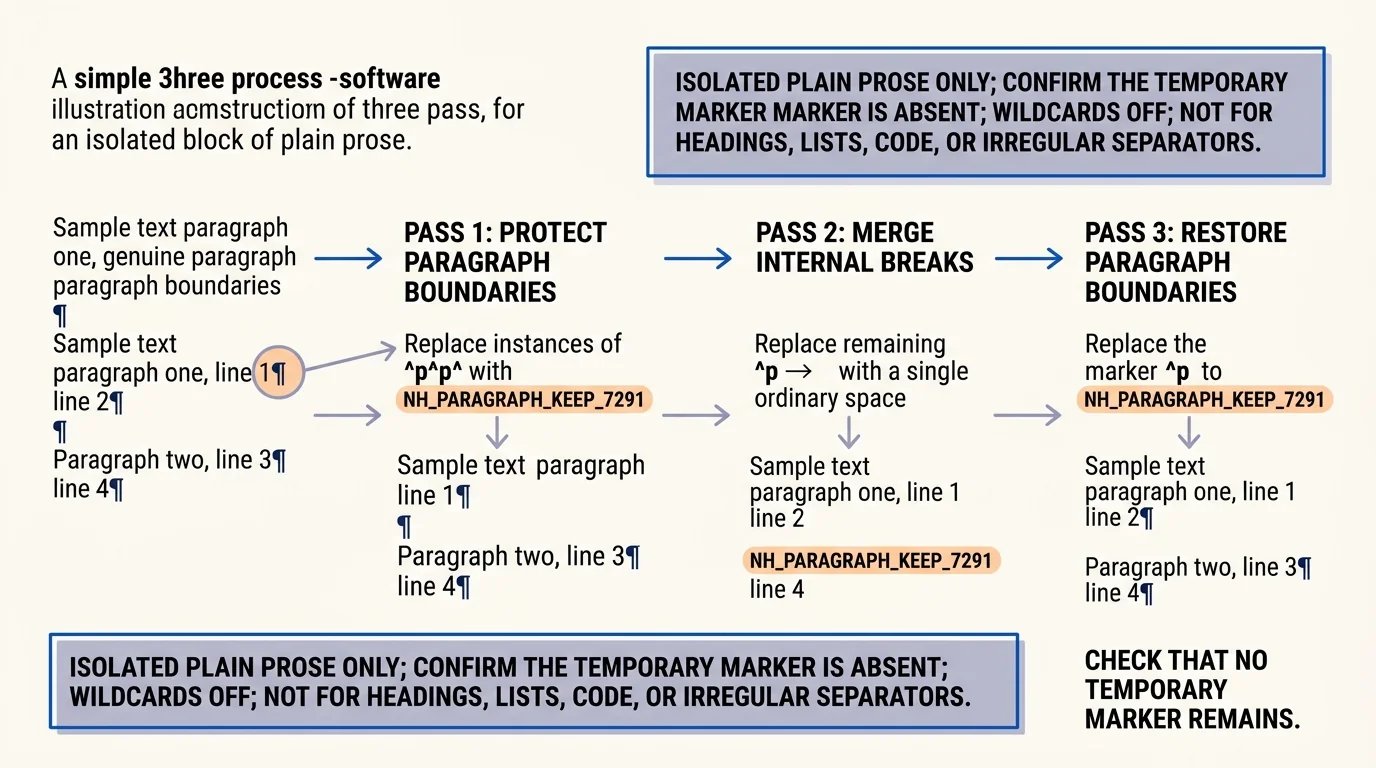
Use the following workflow only for a block of plain prose where exactly one empty paragraph separates genuine paragraphs. The blank paragraph must actually be empty, not a line containing spaces. Review and fix irregular separators first.
Work on an isolated copy. Choose a temporary marker that does not already occur in the text, such as NH_PARAGRAPH_KEEP_7291. Search for the marker before starting to confirm it is absent.
With wildcards off, perform these passes:
|
Pass |
Find what |
Replace with |
Purpose |
|---|---|---|---|
|
1 |
^p^p |
NH_PARAGRAPH_KEEP_7291 |
Protect genuine paragraph boundaries |
|
2 |
^p |
One ordinary space |
Join unwanted line endings |
|
3 |
NH_PARAGRAPH_KEEP_7291 |
^p |
Restore one paragraph boundary |
The restored text has separate paragraphs without an extra empty paragraph between them. Use paragraph spacing for visual separation. If the intended output specifically requires a blank paragraph, restore the marker to ^p^p instead.
A before-and-after example
Before:
The first paragraph has[paragraph]
a short imported line.[paragraph]
[paragraph]
The second paragraph should[paragraph]
stay separate.[paragraph]
After protecting, joining, and restoring:
The first paragraph has a short imported line.[paragraph]
The second paragraph should stay separate.[paragraph]
Afterward, search for the temporary marker again. No marker should remain. Compare the paragraph boundaries with the original and read the joined sentences.
This is a controlled text-cleanup method, not a way to preserve every formatting detail. Removing paragraph marks can affect paragraph-level formatting. For styled documents, keep the original and review the restored styles before replacing any content.
Do not confuse extra spacing with extra paragraphs
A large gap between paragraphs may come from the paragraph’s Before or After spacing setting. If Show/Hide does not reveal an empty paragraph at the gap, deleting marks is probably the wrong fix.
Select the relevant text and inspect its paragraph spacing. Microsoft’s paragraph-spacing guidance explains how to adjust the space before and after paragraphs.
Likewise, a sentence wrapping onto a new line is normal. Changing the page width can move that wrap point without changing the text. There is no ^l or ^p there to replace.
Handle line-ending hyphens manually
Imported text can split a word at the end of a line:
The document contains useful infor-
mation for new readers.
Replacing the break with a space leaves infor- mation, which is still wrong. Removing every hyphen is not safe either, because real terms such as well-written should retain theirs.
Review words joined near former line endings. Reconstruct a split word only when the context confirms it. Check names, reference codes, web addresses, and mathematical expressions especially carefully.
For a small number of affected words, manual correction is often quicker and safer than inventing a broad replacement rule.
Protect lists, tables, and addresses
A mailing address needs its separate lines. A numbered list needs separate items. A code sample may depend on line boundaries. A table can contain several different kinds of formatting within one cell.
Process those parts separately from continuous prose. Do not select the whole document just because the replacement dialog makes it easy. If you work with a selected range, confirm the scope and decline any prompt to continue through the rest of the document unless that is intentional.
A temporary working copy is useful when you are unsure about selection behavior. It reduces the chance of fixing one paragraph while accidentally flattening the rest of the file.
Check these details before saving the cleaned version
Read several joined lines and look for merged words, double spaces, missing punctuation, and awkward hyphens. Check that headings and list items are still separate. Compare the number and position of meaningful paragraphs with the original.
Turn Show/Hide off to review normal reading appearance, then turn it back on if a gap still looks wrong. Keep the backup until the cleaned document has been checked.
What should I do if everything became one paragraph?
Undo the replacement immediately when possible, or return to the saved copy. Do not try to guess the original boundaries from a flattened document when the intact version is available. Restart with a smaller block and identify the break type first.
Why does searching for ^l find nothing?
The text may contain paragraph marks instead, or it may only be wrapping automatically. You may also have entered the wrong character. Use Show/Hide and the Special menu to check rather than switching to ^p and replacing everything.
The takeaway: identify the break, isolate the affected text, replace cautiously, and verify the paragraph boundaries. The aim is readable prose, not the removal of every line ending in the document.