
To get a word count in Excel for text in cell A2, enter this formula in B2:
=IF(LEN(TRIM(A2))=0,0,
LEN(TRIM(A2))-LEN(SUBSTITUTE(TRIM(A2)," ",""))+1)
It returns zero for an empty cell or a cell containing only ordinary spaces. Otherwise, it counts space-separated words after removing extra spaces. Copy the formula down to count each row, then add the results with SUM.
The important detail is the phrase space-separated. Text copied from a website or PDF may contain tabs, line breaks, or nonbreaking spaces. Those need a small cleanup step before this method can count them reliably.
Start with a small test you can check by eye
Create a sheet with Text in A1 and Word count in B1. Put the following values in column A, then enter the formula in B2 and fill it through B6.
| Cell | Text to enter | Expected word count |
| A2 | Clear writing helps readers. | 4 |
| A3 | One | 1 |
| A4 | Leave this cell empty | 0 |
| A5 | Enter only three spaces | 0 |
| A6 | fast simple tools | 3 |
For A4 and A5, follow the instruction rather than typing the instruction itself. In A6, use several spaces between the words.
The total should be 8 words. This short test is useful before you apply the same formula to hundreds of product descriptions or survey responses.
How the Excel word count formula works
The formula has four jobs. TRIM(A2) removes ordinary spaces at the start and end and reduces repeated internal spaces to one. LEN measures text length. SUBSTITUTE creates a comparison version with ordinary spaces removed. The difference between those lengths is the number of gaps between words.
For example, red blue green has two spaces. Two gaps plus one gives three words.
The opening IF is essential. Without it, the usual “spaces plus one” calculation returns one for a blank cell. A blank response should not become a one-word response in your report.
Microsoft’s TRIM documentation also explains an important limitation: TRIM does not remove the nonbreaking space commonly found in web content. We handle that separately below.
What counts as a word in this formula?
This method counts nonempty units separated by ordinary spaces. Under that rule, well-written is one word, don’t is one word, and 2026 is one unit. A standalone punctuation mark surrounded by spaces is also counted as a unit.
That makes the formula useful for consistent spreadsheet checks, but it is not a full language parser. It will not automatically identify word boundaries in writing that does not use spaces between words. It may also disagree with another app’s treatment of hyphens or punctuation.
Count words in an Excel column
Once B2 gives the expected result, copy it down to the last data row. For a fixed block ending at row 1000, total the helper column with:
=SUM(B2:B1000)Use a range that matches your records. Exclude the header and any summary rows. There is usually no benefit to calculating a complex text formula across more than a million worksheet rows when you only have a few thousand records.
If your data has blank rows, do not assume double-clicking the fill handle will reach the intended last row. Select the required output range and use Fill Down, or use an Excel table.
Use a table for a list that keeps growing
Select the dataset and choose Insert > Table, confirming the header row. Give the source column the name Text and add a column called Word count. In that calculated column, use:
=IF(LEN(TRIM([@Text]))=0,0,
LEN(TRIM([@Text]))-
LEN(SUBSTITUTE(TRIM([@Text])," ",""))+1)
Then total the column using the actual table name:
=SUM(Table1[Word count])The table approach keeps new records and their formulas together. Microsoft’s guide to calculated columns explains how one formula can populate a table column.
For an entire workbook, build a count for each relevant text range and sum those totals. Do not count the same content twice just because it appears on both a working sheet and a summary sheet.
Clean tabs, line breaks, and nonbreaking spaces first

Suppose a cell contains red, a line break, and blue. There are two words, but there is no ordinary space between them. A formula that only counts spaces can return one.
Use a helper column so the cleanup remains visible and easy to audit. Keep the original text in A2. In B2, normalize the separators:
=TRIM(SUBSTITUTE(SUBSTITUTE(SUBSTITUTE(
SUBSTITUTE(A2,UNICHAR(160)," "),
CHAR(9)," "),CHAR(10)," "),CHAR(13)," "))
This changes a nonbreaking space, tab, line feed, or carriage return into an ordinary space. TRIM then tidies the result. The line breaks displayed in this formula are only for readability; they can be retained in Excel’s formula bar or removed.
In C2, count the cleaned text:
=IF(B2="",0,LEN(B2)-LEN(SUBSTITUTE(B2," ",""))+1)Fill both formulas down and sum column C. Do not overwrite column A until you have checked the results.
| Original content | Cleaned content | Expected count |
| red + line break + blue | red blue | 2 |
| red + tab + blue | red blue | 2 |
| red + nonbreaking space + blue | red blue | 2 |
| Several spaces around red | red | 1 |
| Only tabs and spaces | Empty text | 0 |
The + symbols in this table describe the separators; they are not characters to type into the cell.
Why not just delete hidden characters? Deleting a separator can join two words. Replacing it with a space preserves the boundary between red and blue. This cleanup covers several common separators, not every possible Unicode space.
A shorter option in Microsoft 365 and Excel 2024
When TEXTSPLIT is available, you can split the cleaned text into words and count the pieces. With the normalized text in B2:
=IF(B2="",0,COUNTA(TEXTSPLIT(B2," ",,TRUE)))The TRUE argument tells TEXTSPLIT to ignore empty pieces caused by repeated delimiters. The initial IF still handles empty input explicitly.
Microsoft lists TEXTSPLIT for Microsoft 365 and Excel 2024. Do not assume it is available in Excel 2021 or 2019. A #NAME? result may mean your installation does not recognize the function; use the classic formula instead.
Choose the method you can understand and maintain. A transparent helper column is often more useful than one long formula that is difficult to troubleshoot.
Common problems and how to fix them
The count is one for an empty cell
Check that you included the blank-cell test. Also inspect whether the cell contains a tab or nonbreaking space rather than an ordinary space. Use the normalization helper for imported text.
The result does not change when I copy the formula down
Check the references. A2 changes to A3, A4, and so on when copied. $A$2 always points to the same cell. Use a fixed reference only when that is intentional.
I used COUNTA, but the total looks too low
COUNTA(A2:A1000) counts non-empty cells, not the words inside them. One cell can hold a whole paragraph. Count the words within each cell first, then sum the counts.
I only want the rows visible after filtering
With per-row word counts in C2:C1000, use:
=SUBTOTAL(109,C2:C1000)Here, 109 sums visible values while excluding filtered-out and manually hidden rows. Keep the normal SUM total separately when you also need the count for the complete dataset.
Excel rejects a formula that looks correct
Use straight quotation marks, not decorative curved quotes copied from formatted prose. Some regional settings also require semicolons instead of commas between arguments. Check the source cell for an existing error instead of hiding every error with IFERROR(…,0).
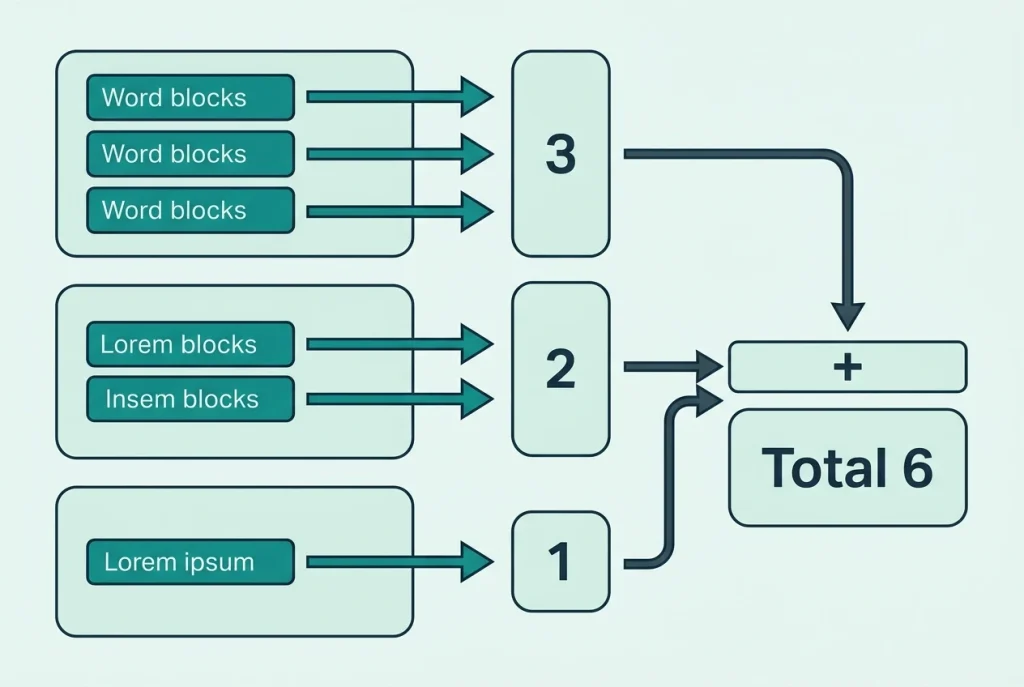
Check the result before using it in a report
Choose a few short cells, count their words manually, and compare. Include a blank cell, a cell with repeated spaces, and a multiline response. If all three behave as intended, you have a better basis for trusting the larger total.
For a separate passage, the NavigationHubs Word Counter offers another way to inspect pasted text. It does not open Excel workbooks or run these formulas, and different counting rules can produce different totals.
The takeaway: count cleaned, nonempty words in each row, keep the original text, and total a clearly defined range. That gives you an Excel word count you can explain and check, not just a number in a cell.