
Removing duplicates is easy when every repeated row is identical. It becomes more important to slow down when two rows describe the same customer but contain different dates, contact details, or order information.
To remove duplicates in Google Sheets, select the complete data range, choose Data > Data cleanup > Remove duplicates, and select the columns that define a duplicate. Before confirming, decide which record should survive. A repeated customer ID does not necessarily mean the newest row is already at the top.
This walkthrough uses a small customer table to show the difference between deleting repeated values, choosing one record per customer, and creating a separate unique list without deleting anything.
The five-row problem
Imagine that you import customer updates from two files. Your table contains these records, with a header in row 1 and data in rows 2 through 6:
|
Record ID |
Customer ID |
Status |
Updated |
|---|---|---|---|
|
101 |
C104 |
Pending |
2026-10-01 |
|
102 |
C208 |
Active |
2026-10-02 |
|
103 |
C104 |
Active |
2026-10-05 |
|
104 |
C330 |
Pending |
2026-10-03 |
|
105 |
C208 |
Paused |
2026-10-06 |
There are five records but only three customer IDs. None of the complete rows is identical because each has a different record ID. Selecting every column as the comparison key would therefore answer the wrong question.
Your intended rule might be: keep the most recently updated record for each customer. Under that rule, the survivors should be record 103 for C104, record 105 for C208, and record 104 for C330.
Write that expectation down before touching the menu. It gives you something concrete to verify afterward rather than accepting a smaller row count as proof that the cleanup worked.
Make a working copy and define the key
Duplicate the sheet or save a separate copy of the original range. Keep all columns together, including notes and identifiers that you are not using to decide whether a row is duplicated.
A duplicate key is the field or combination of fields used to identify a repeated entity. Customer ID may be appropriate for a customer table. Order ID plus product ID may be appropriate for order lines. A person’s name alone is often not enough because different people can share a name.
Separate blank keys for review before deduplicating. Two rows with no customer ID may describe different people. Treating every blank as the same customer can discard valid information.
Also confirm what a repeated record means. Two purchases by the same customer are not duplicate transactions merely because their customer IDs match. The table’s purpose determines the key.
Keep the latest record before removing the rest
In the working copy, select the entire table and sort by Updated, newest to oldest. Add a second sort rule using Record ID, largest to smallest, to resolve equal timestamps consistently. Make sure the Updated column contains real date values, not a mixture of dates and unrelated text.
After sorting, C208’s paused record should appear above its older active record, and C104’s active record should appear above its pending record. You have now placed the preferred rows first for the cleanup operation.
Next, select the full table again. Open Data > Data cleanup > Remove duplicates, indicate that the range has a header, and check only Customer ID as the comparison column. The other columns remain part of each record; they are simply not part of the duplicate key.
Google’s data cleanup instructions describe this column-selection process. After applying it, verify the surviving IDs against your expected list. Do not assume that a completed dialog means the business rule was correct.
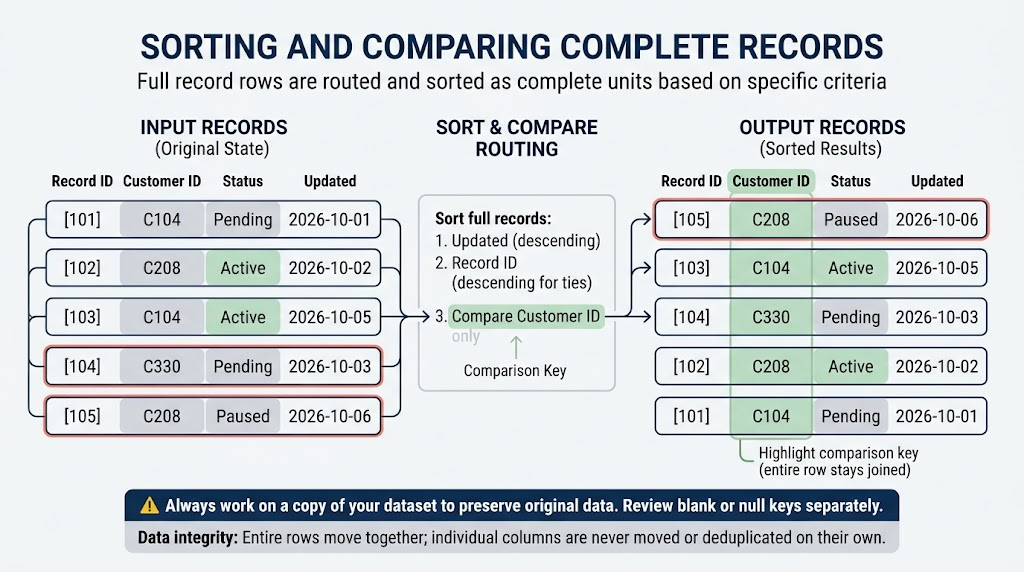
Why selecting the full range matters
Suppose you select only column B and remove duplicate customer IDs while leaving Status and Updated outside the cleanup range. You risk separating identifiers from the details that belong to them.
The same warning applies to sorting. Sorting just the customer column can change which status appears beside each customer. A table may still look tidy while its records have become wrong.
Work with the complete rectangular record range. Include every field that belongs to the row, and inspect any adjacent columns before accepting a selection-expansion prompt. When the sheet contains several unrelated tables, do not automatically select the whole sheet either. Choose the complete table you actually intend to clean.
Use UNIQUE when you only need a separate list
Sometimes you do not want to remove duplicate rows at all. You simply need a list of the customer IDs represented in the data. In an empty area, enter:
=UNIQUE(B2:B6)This returns the distinct IDs while leaving the source table unchanged. Google documents that UNIQUE returns rows in first-appearance order.
The range you supply matters. This formula asks for distinct complete rows:
=UNIQUE(A2:D6)Because the record IDs differ, all five sample rows remain distinct. UNIQUE does not automatically interpret Customer ID as the key or choose the newest status. It compares the range you give it.
The optional exactly_once argument answers another question: which entries occur only once? That is not the same as returning one representative of every value. Avoid turning it on merely because you want a deduplicated list.
Check spaces, capitalization, and imported values
Google’s Remove duplicates feature treats values that differ only in letter case, formatting, or formulas as duplicates when their values otherwise match. Do not use it for a case-sensitive identifier system without checking whether its behavior suits your data.
Hidden spaces create a different problem. “C104” and “C104 ” may look similar while containing different text. Use a helper column to inspect and normalize identifiers only when your rules allow it. Trimming spaces in a customer ID may be sensible; changing a case-sensitive code may not be.
Google’s Trim whitespace feature does not remove nonbreaking spaces. If a copied value still behaves unexpectedly, compare its length or inspect the source. Repeating the same cleanup command is not a substitute for understanding the character that remains.
Verify the result with a small audit
For the sample table, confirm that five original records became three retained records, and that two records were removed. Then check the actual survivors, not just the totals.
|
Customer |
Expected retained record |
Reason |
|---|---|---|
|
C104 |
103, Active |
Updated October 5 |
|
C208 |
105, Paused |
Updated October 6 |
|
C330 |
104, Pending |
Only available record |
Read at least one removed record beside its survivor. This can reveal a problem that a row count misses, such as an older record containing a note that must be merged rather than discarded.
For a recurring import, record the key, sort order, tie-break rule, and blank-key policy. A reliable repeated process needs more than remembering which menu you clicked last time.
When a plain-text tool is enough
A simple list of repeated lines is a different task from a multi-column customer table. You can use a duplicate line remover for one plain-text entry per line, such as an exported list of repeated labels.
Do not expect it to select the newest spreadsheet record, preserve a relationship among multiple columns, or understand your customer IDs. Keep record-based cleanup in the spreadsheet and use a text tool only when the data really is a list of text lines.
The safest Google Sheets duplicate removal starts with a sentence: “These columns define the same record, and this is the record we want to keep.” Once that sentence is clear, the menu becomes the easy part.