
A Shopify meta description is a short summary you set for a product, collection, page, blog post, or homepage. Edit it in the relevant Search engine listing section, or in Online Store > Preferences for the homepage.
A useful description explains what is on that specific page. It should not be a keyword list, a copy of every other product’s description, or a promise your store cannot support.
Meta descriptions are not product descriptions
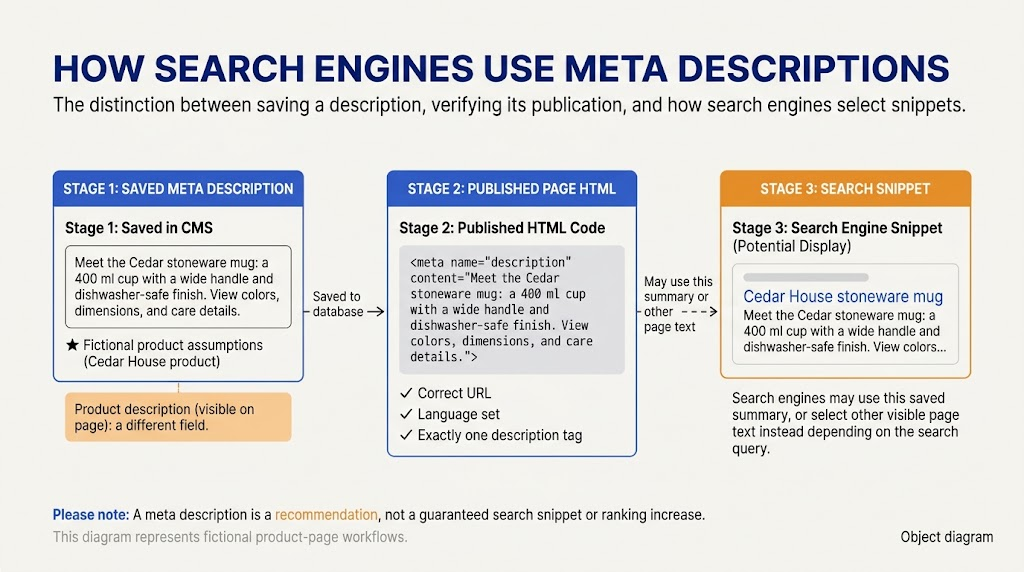
A product description is the main sales and information copy shoppers read on the product page. The meta description is a separate summary in the page’s HTML.
You can edit the summary without replacing the full product description. Likewise, the search listing’s page title is not necessarily the same field as the visible product title.
For example, a product page may contain several paragraphs about a mug’s size, material, and care. Its meta description should summarize the most useful details, not try to squeeze the whole product page into one field.
Edit a Shopify product meta description
- In Shopify admin, open Products.
- Select the product.
- Find Search engine listing.
- Select the edit or pencil icon.
- Update Meta description.
- Save the product.
Shopify’s product-editing documentation explains the search-listing controls. Leave the URL handle unchanged when your task is only to improve the description.
The preview helps you review the saved copy. It is not a live Google result.
Edit collections, pages, and the homepage
Use the entry point that matches the page you are updating.
|
Page type |
Where to start |
|---|---|
|
Collection |
Products > Collections, then open the collection |
|
Information page |
Online Store > Pages, then open the page |
|
Homepage |
Online Store > Preferences |
For an individual collection or page, find its search listing section and select the editing control. Labels can appear as Search engine listing, Search engine listing preview, or Edit website SEO, depending on the screen.
For the homepage, update the description in the Social sharing image and SEO section of Preferences. Save after editing.
Shopify’s SEO field instructions cover page and homepage settings. Admin navigation can change, so locate the relevant item first rather than editing a similarly named field elsewhere.
Write the description around the page’s actual value
A practical structure is:
What the page offers + one or two verified details + a useful next step.
The emphasis changes by page type. A product description should identify an individual item. A collection description should describe the range. A care page should promise instructions, not try to sell an unrelated product.
All examples below use a fictional store, Cedar House. The product details are example assumptions. Only use comparable claims when they are true for your own store.
Product page example
Assume the page sells a 400 ml stoneware mug with a wide handle and dishwasher-safe finish.
Weak: “Shop the best mugs, coffee mugs, ceramic mugs, and stylish mugs at amazing prices today.”
Better: “Meet the Cedar stoneware mug: a 400 ml cup with a wide handle and dishwasher-safe finish. View colors, dimensions, and care details.”
Character count: 132, including spaces and punctuation.
The better version identifies the item and gives concrete details. It does not invent a discount, a shipping offer, or a claim that the mug is the best.
Collection page example
Assume the collection includes stoneware mugs in several colors, sizes, and finishes.
Description: “Explore stoneware mugs in neutral and bright colors. Compare sizes, handles, and finishes to find a cup that suits your daily routine.”
Character count: 134, including spaces and punctuation.
This describes a selection rather than pretending the collection is a single product. If only one size is available, remove the size comparison.
Information page example
Assume the page explains how to care for the store’s stoneware.
Description: “Learn how to care for Cedar House stoneware, including washing, storage, and everyday handling. Check the advice for your specific item.”
Character count: 136, including spaces and punctuation.
The wording matches an informational task. It does not promise repair instructions or guarantees that the page does not contain.
Homepage example
Assume the store sells stoneware mugs, bowls, and plates, with product details available on individual pages.
Description: “Discover Cedar House stoneware for everyday tables. Browse mugs, bowls, and plates, then compare materials, sizes, and care information.”
Character count: 136, including spaces and punctuation.
The homepage summary describes the store’s overall range. Reusing it unchanged on every product would lose the specific information shoppers need.
How long should a Shopify meta description be?
Use enough text to explain the page clearly, then remove repetition. A compact sentence or two is a sensible drafting approach.
An admin field’s allowance is not the same as the amount Google displays. Google’s snippet documentation says there is no fixed meta description length limit; snippets can be truncated to fit the display.
The example character counts above are editing references, not targets you must hit. A shorter accurate description is better than padding a sentence with generic adjectives.
Put the most important information early. If the last few words disappear, the reader should still understand the page’s main offer.
Use keywords naturally, not mechanically
A phrase such as stoneware mug fits naturally when it describes the product. Repeating it several times does not add information.
Compare:
“Stoneware mug, stoneware coffee mug, best stoneware mug, buy stoneware mug.”
with:
“A 400 ml stoneware mug with a wide handle. Compare colors and check the care instructions before choosing yours.”
The second version helps someone decide whether to visit the page. It also makes it easier to check whether the description matches the actual product.
Avoid claims that expire quickly unless you have a process to maintain them. A shipping threshold, sale price, or delivery promise can become misleading when the offer changes.
Verify the published description, not just the preview
After saving:
- Open the public product or page URL.
- Use View Page Source in a desktop browser.
- Search for the description meta tag.
- Confirm that its content matches your saved wording.
- Check the correct language and market version of the page.
The output will usually resemble this pattern:
<meta name=”description” content=”Your saved page summary.”>
Attribute order and quote style can differ. If you see an old or duplicate description, check the theme and any SEO app that controls metadata. Avoid adding another manual tag until you know which component is responsible.
When the published HTML is correct but Google shows another snippet, the search display may not have refreshed or may be using different page text. That is not automatically a Shopify saving error.
A manageable workflow for a large catalog
Do not start by writing hundreds of descriptions with the same generic sentence. Choose a small batch and establish what facts each page can support.
For each URL, record the page type, main product or subject, verified distinguishing details, draft description, and review status. Include a character count as a helpful check, not a quality score.
A reusable structure is fine. Identical promises across unrelated products are not. Review generated or templated copy against the actual product data before publishing it.
Start with important pages that have weak or missing summaries, then expand the process. The NavigationHubs Word Counter can help check a pasted draft’s length, while the Search Preview provides an illustrative layout. Neither tool connects to Shopify or verifies live product specifications.
Frequently asked questions
Do I paste HTML into the Shopify description field?
No. Enter the summary as normal text in the meta description field. The storefront’s theme handles the surrounding HTML.
Can every product use the same description?
That misses the chance to explain the individual product. A shared structure can work, but the details should match each page.
Should I change the URL handle while editing the description?
Not for this task. Treat URL changes as a separate decision rather than an incidental part of rewriting search copy.