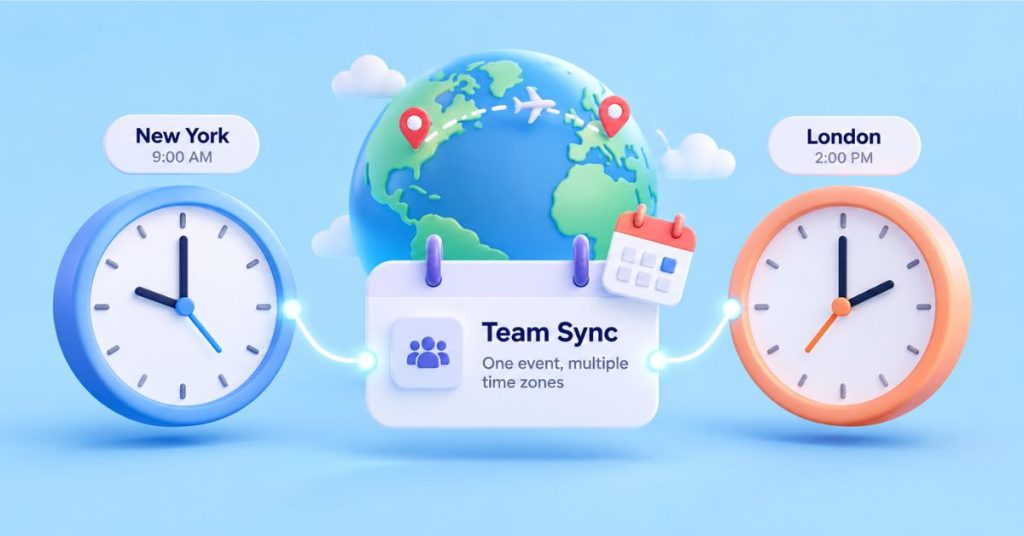
Before you move that “wrong” calendar appointment back to its usual slot, check its time zone. You may be about to reschedule a meeting that was correct all along.
Most timed calendar events stay at the same moment in time when you travel. What changes is the local time shown on your screen. A meeting can appear earlier or later without anyone changing the invitation. The exceptions include all-day entries and appointments deliberately set to follow local time wherever you are.
Why Calendar Events Show Different Times When You Travel
Think of an event’s time zone and your calendar’s display time zone as two separate settings.
The event tells the app when something happens. The display setting tells it which local clock to use when showing your schedule.
For example, a meeting at 3:00 PM London time in January appears at 10:00 AM in New York. Both entries point to the same meeting. A sufficiently large time difference can even put an appointment on the previous or following date.
Changing your calendar’s display zone does not, by itself, reschedule that meeting. Editing its actual start time can. That distinction matters before you drag an event to a different slot.
How to Check Time Zones in Your Calendar App
Google Calendar
In the mobile app, open Menu > Settings > General and check Use device time zone. Turn it on to let the calendar follow your phone’s time zone. Turn it off only when you deliberately want to view your schedule in a chosen zone.
On a computer, go to Settings > Time zone > Primary time zone. The option to ask before updating your primary zone is useful when traveling. Check your browser calendar separately rather than assuming it matches your phone.
Google’s calendar time zone guide also explains how to choose a zone for an individual event.
iPhone Calendar
Apple Calendar normally displays events in your current location’s time zone. To check whether that behavior has been overridden, open Settings > Apps > Calendar > Time Zone Override.
Leave the override off to follow local time. Turn it on and choose a city to keep viewing your calendar in that city’s time instead. This changes the Calendar app’s display, not the iPhone’s main clock.
Apple’s Calendar instructions distinguish this display setting from an individual event’s time zone. To set the latter, open the event’s start or end time and select Time Zone.
Use the instructions for the app you actually open. Reading a Google calendar inside Apple’s Calendar is not the same as using the Google Calendar app.
Outlook
In new Outlook or Outlook on the web, open Settings > Calendar > View and find Display my calendar in time zone. You can also enable the prompt that asks whether to update your zone when traveling.
Classic Outlook uses File > Options > Calendar > Time zones instead. Microsoft’s time zone guidance explains the differences between versions and how the same meeting appears at each attendee’s local time.
How to Add Appointments for an Upcoming Trip
Suppose you book dinner in Paris for 7:00 PM while you are still in New York. Entering “7:00 PM” is not enough. Set the appointment’s time zone to Paris, then enter the restaurant’s local time.
It may appear earlier in your calendar while you are still viewing New York time. That is the expected conversion, not a reason to edit it back to seven.
For a journey between time zones, check the start and end separately. Google Calendar on desktop supports separate start and end time zones. Compare the saved entry with your booking confirmation, including the date at each end.
Why Recurring Meetings Shift After Daylight Saving Time
A weekly meeting normally follows the time zone used to define the series. A call scheduled for 9:00 AM in that zone can stay at nine there while moving an hour in yours.
This can happen when the two places change their clocks on different dates, or when only one observes daylight saving time. A series deliberately scheduled in UTC follows a different rule: its UTC time stays fixed, so local times can change.
Before correcting a recurring meeting, check the particular occurrence and its reference time zone. Do not change the whole series just because next week’s entry looks different. Confirm with the organizer if the intended time is unclear.
Do All-Day Events Change When You Travel?
A genuine all-day entry, such as a birthday, represents a calendar date rather than a meeting at midnight. Google Calendar stores all-day dates separately from timed appointments.
If an imported birthday appears on the wrong day, check whether it arrived as an all-day event or as a timed appointment. The latter can cross midnight when converted to another zone.
There is also an exception called floating time: an appointment with no fixed time zone. Where supported, “8:00 AM” means eight wherever the viewer is. That can suit a personal routine, but it is unsuitable for a shared call that everyone must join simultaneously.
How to Fix Calendar Events Showing the Wrong Time
Check the settings before changing the appointment:
If the whole schedule looks shifted, check the display zone. Also confirm that your device shows the correct local time and date.
If one event looks wrong, inspect that event. Compare its start time, end time, date, and time zone with the original invitation or booking.
If your phone and laptop disagree, compare their settings. They may be showing the same event through different time zones, rather than different event details.
Check the latest invitation before editing. Make sure you are looking at the right calendar account and that recent organizer updates have synced.
For a current-time comparison, open the NavigationHubs World Clock. For an appointment on a future date, check that date in your calendar instead of applying today’s time difference. Daylight saving changes can make today’s comparison misleading.
The question to ask is not simply, “Why did this move?” It is, “Did the appointment change, or am I viewing it on a different clock?” Answer that first, and you can avoid turning a harmless display change into a real scheduling mistake.