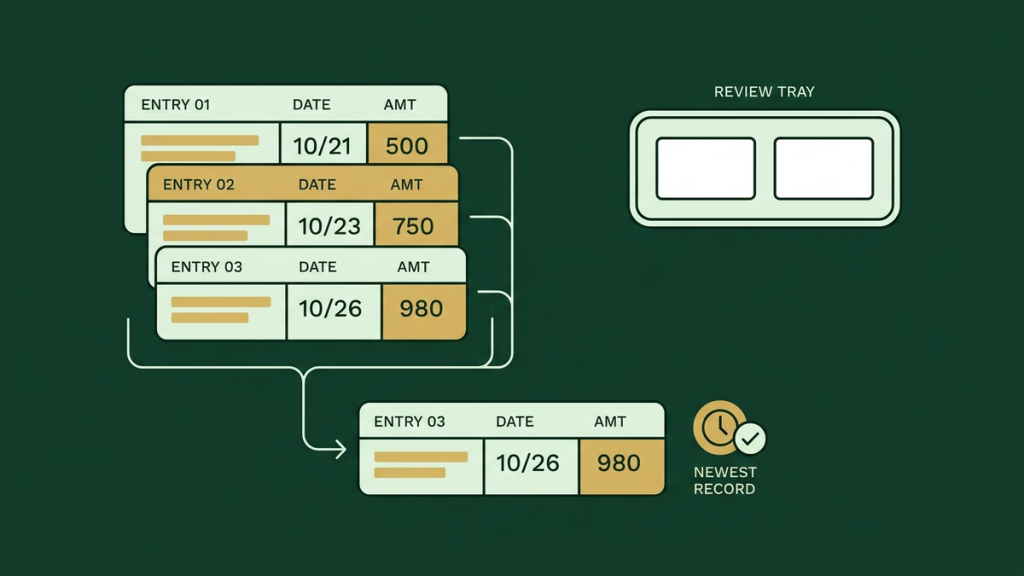
To remove duplicates in Power Query, select the columns that define a duplicate, then choose Home > Remove Rows > Remove Duplicates. That is enough when you only need a list of distinct values. It is not enough when two records share an email address but have different dates, prices, or statuses.
For those records, decide which row should survive before you remove anything. A useful rule might be: keep the most recently updated record, and use a unique record ID to break any ties.
This guide covers both tasks, with a small dataset you can check yourself.
First, decide what counts as a duplicate
Power Query compares the columns you select. Selecting one column asks a different question from selecting the entire table.
|
Selected columns |
What Power Query treats as a duplicate |
|---|---|
|
|
Another row with the same email value |
|
Email and Status |
Another row with the same combination of email and status |
|
Every column |
Another row whose values match across all selected columns |
Suppose a customer appears twice because their status changed from Pending to Active. Those rows are duplicates by email, but they are not duplicates across every column.
Do not remove repeated customer IDs from an order table simply because they repeat. One customer can place several legitimate orders. The key might need to be OrderID instead.
Remove duplicates when the surviving row does not matter
In Excel, make a backup of your source, turn the data into a table, and open it through Data > From Table/Range. In Power BI Desktop, open the query through Transform data.
In the Power Query Editor:
- Check that the headers and data types are correct.
- Select the column that should contain distinct values. Hold Ctrl to select several columns on Windows.
- Choose Home > Remove Rows > Remove Duplicates. Some layouts place this under the Reduce Rows group.
- Inspect the result and the new step in Applied Steps.
- Load the result to a separate output table, or apply the query in Power BI.
Microsoft’s duplicate-handling guide explains both single-column and multi-column matching. It also notes that Power Query is case-sensitive: ABC and abc are different values unless you normalize them first.
For a list containing only email addresses, the remaining values may be all you need. For full customer records, continue with an explicit retention rule.
Why sorting and removing duplicates can keep the wrong row
A common approach is to sort dates newest first, select Email, and remove duplicates. The preview may look correct, but that is not a reliable rule for choosing the surviving record.
Microsoft’s Table.Distinct documentation says the surviving duplicate is not guaranteed. Query optimization and operations performed by the source can affect which row remains.
In other words, the first row you can see is not necessarily a promised winner after refresh.
Microsoft documents buffering as one way to make duplicate removal predictable. However, buffering can use memory and affect performance. It should not be a reflexive fix for every query. When the requirement is specifically “latest record per customer,” make that selection rule visible in the query itself.
Worked example: keep the newest record per email
Create an Excel table named Contacts with these four columns. RecordID must be a stable, unique number. UpdatedAt must contain valid dates and times.
|
RecordID |
|
UpdatedAt |
Status |
|---|---|---|---|
|
101 |
lee@example.com |
2026-10-01 09:00 |
Pending |
|
102 |
lee@example.com |
2026-10-03 10:00 |
Active |
|
103 |
maya@example.com |
2026-10-02 08:00 |
Pending |
|
104 |
maya@example.com |
2026-10-02 08:00 |
Active |
|
105 |
blank |
2026-10-04 09:00 |
Review |
|
106 |
blank |
2026-10-04 10:00 |
Review |
Leave the last two Email cells empty. Do not type the word “blank.”
For this example, the rules are:
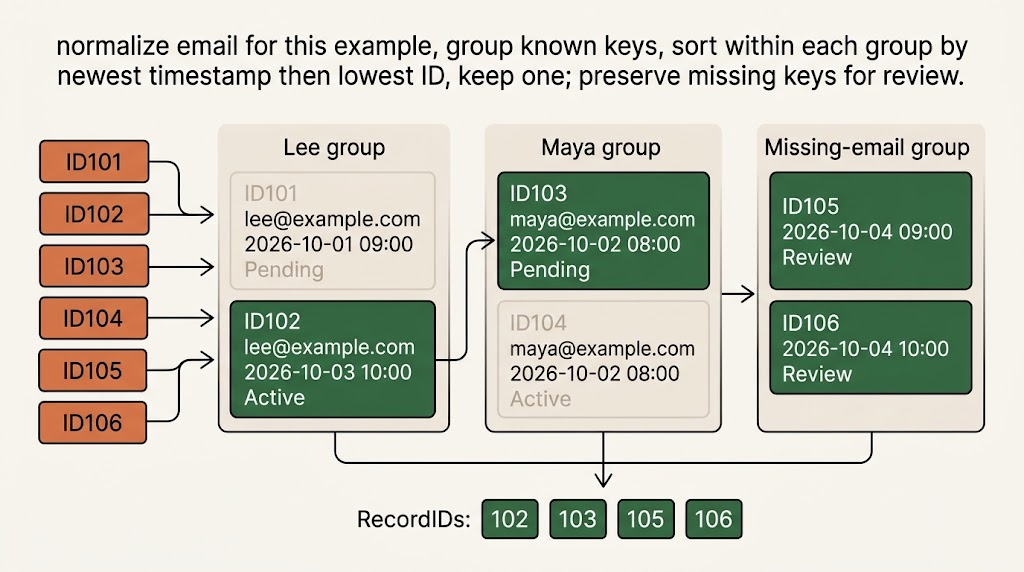
- Compare email addresses after trimming surrounding spaces and converting them to lowercase. This is an example business rule, not a universal rule for every identifier.
- Keep the row with the newest UpdatedAt value.
- When timestamps match, keep the lowest RecordID.
- Preserve rows with missing email addresses for review instead of treating all unknown people as one person.
The expected retained IDs are 102, 103, 105, and 106. Record 103 wins its tie because its ID is lower, not because Pending is a preferred status.
Use a group-level selection rule
Open Home > Advanced Editor for a query reading the Contacts table. The following M code uses the example’s column names and rules:
let
    Source = Excel.CurrentWorkbook(){[Name="Contacts"]}[Content],
    Typed = Table.TransformColumnTypes(Source, {
        {"RecordID", Int64.Type}, {"Email", type text},
        {"UpdatedAt", type datetime}, {"Status", type text}
    }),
    Keyed = Table.AddColumn(Typed, "EmailKey", each
        if [Email] = null then null
        else Text.Lower(Text.Trim([Email])), type text),
    Known = Table.SelectRows(Keyed, each
        [EmailKey] <> null and [EmailKey] <> ""),
    Missing = Table.SelectRows(Keyed, each
        [EmailKey] = null or [EmailKey] = ""),
    Grouped = Table.Group(Known, {"EmailKey"}, {
        {"Winner", each Table.FirstN(Table.Sort(_, {
            {"UpdatedAt", Order.Descending},
            {"RecordID", Order.Ascending}
        }), 1), type table}
    }),
    Expanded = Table.ExpandTableColumn(Grouped, "Winner",
        {"RecordID", "Email", "UpdatedAt", "Status"}),
    Combined = Table.Combine({Expanded, Missing}),
    Result = Table.Sort(
        Table.RemoveColumns(Combined, {"EmailKey"}),
        {{"RecordID", Order.Ascending}}
    )
in
    Result
Here is what matters in that code:
The comparison key is separate from the original email. EmailKey handles the matching, while the output retains the original Email value from the winning row.
The sort happens inside each group. Each email’s records are sorted by UpdatedAt and then RecordID, before one row is selected. This follows the group-level approach described in Microsoft’s Power Query common-issues guidance.
The final sort is only for presentation. It makes the result easy to read by RecordID; it does not decide which record wins.
Missing keys are handled separately. The two blank-email rows remain available for investigation.
Change the table name and column names to match your own data. Before applying this to a real dataset, resolve invalid dates, missing timestamps, and duplicate RecordIDs. The example assumes those fields are usable; it does not silently guess what a broken timestamp means.
What about keeping the first, last, or cheapest record?
“First” needs a definition. First in a database’s current preview is not necessarily a stable business rule. An original sequence number supplied by the source is more meaningful.
For the earliest record, sort the relevant date ascending within each group. For the lowest price, sort Price ascending, then apply a stable tie-breaker. First, make sure prices share the same currency and conditions. A cheaper price for a different service is not necessarily a duplicate offer.
For the latest record, use the newest timestamp. Do not assume a larger RecordID means newer unless that relationship is guaranteed by your system.
If two records are equally eligible, choose a rule or flag the tie for review. Do not let an accidental row order make the decision.
Check the result before relying on a refresh
For the sample, verify all four of these outcomes:
- Six source rows become four output rows.
- Lee’s output row is 102, with the newer timestamp and Active status.
- Maya’s output row is 103, according to the stated tie-breaker.
- Both missing-email records remain.
Then add a seventh row: RecordID 107, lee@example.com, UpdatedAt 2026-10-05 12:00, and Status Paused. Refresh the query. Record 107 should replace 102, while the output still contains four rows.
Also check the rejected records, not just the winners. A separate review query is useful when removing data could affect a report or customer workflow. Compare important totals before and after; a lower row count is not proof that the cleanup was correct.
Frequently asked questions
Does Remove Duplicates change the original Excel table?
A normal Power Query transformation changes the query result, not the source table it reads. Load the result separately so the original data and the cleaned output remain easy to distinguish.
Does Keep Duplicates show only the extra copies?
No. It keeps the members of groups that repeat according to your selected columns. If an email occurs three times, all three matching rows can appear. That makes it useful for investigation before choosing a winner.
Should I remove blanks before deduplicating?
Only when your data rules say blank records are invalid and can be discarded. A missing identifier is often a review problem, not proof that two rows describe the same person.