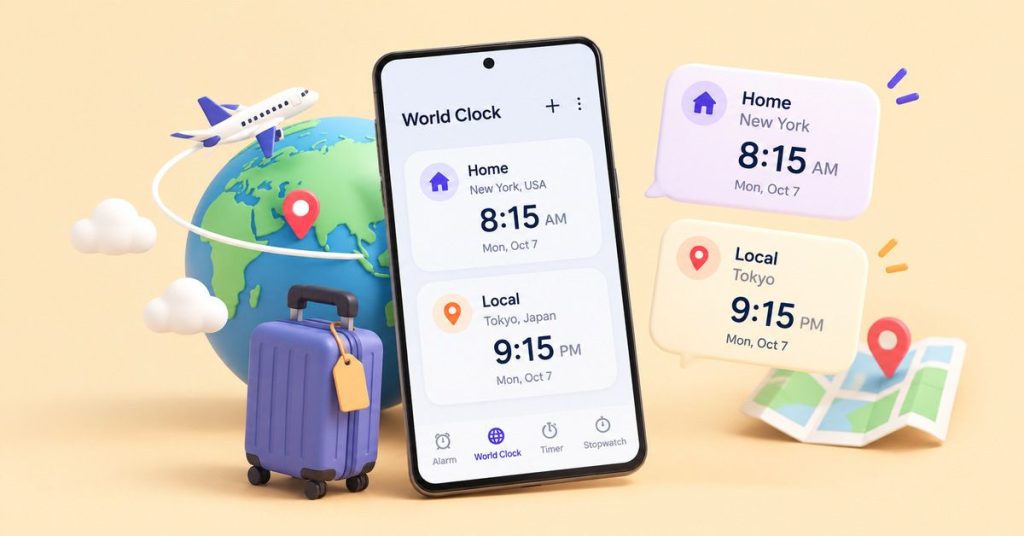
“Call me at eight” sounds simple until you’re several time zones apart. Eight where? And will it still be the same day?
The easiest way to see your home time while traveling is to keep your phone on local time and add a separate clock for your home city. This lets you check the time back home without changing the clock you rely on for flights, appointments, and daily activities.
You can do this using your phone’s built-in World Clock, a Home Screen widget, or an automatic home clock feature.
Here’s a quick comparison of the available options:
| Phone | Easiest way to show home time |
|---|---|
| iPhone | Add your home city to World Clock or use a Clock widget |
| Android (Google Clock) | Enable Automatic home clock |
| Samsung Galaxy | Add a Dual clock widget or enable Roaming clock |
Adding a second clock doesn’t change your phone’s main time zone. Your device can continue displaying local time while you check the time at home.
Below, you’ll find step-by-step instructions for each device, along with what happens to alarms and calendar events when you travel.
How to Show Your Home Time Zone on iPhone
The iPhone Clock app includes a World Clock feature that shows the current time in multiple cities. You can also add widgets to check home time without opening the app.
Add Your Home City to World Clock
- Open the Clock app on your iPhone.
- Tap World Clock at the bottom.
- Tap the + button.
- Search for your home city and select it.
- Add your travel destination if you want to compare both locations.
- Tap Edit to move your home city near the top of the list.
You can now open World Clock whenever you want to check the time at home.
If your hometown isn’t listed, choose a nearby city that follows the same time zone and daylight saving rules.
Add a Home-Time Widget to Your iPhone
A Clock widget makes home time visible directly on your Home Screen.
Following Apple’s widget instructions:
- Touch and hold an empty area of your Home Screen until the apps begin to move.
- Tap Edit > Add Widget.
- Search for Clock.
- Select a city-based or World Clock widget from the available layouts.
- Tap Add Widget, then Done.
- Touch and hold the widget and select Edit Widget, if available.
- Set the displayed city to your home location.
If you select a widget that displays several clocks, check the city assigned to each one.
Important: Some widgets initially display a default city rather than your home city. Always check the displayed location after adding the widget.
Show Home Time on Your iPhone Lock Screen
You can also display another city’s time on your Lock Screen using a supported Clock widget.
- Touch and hold your Lock Screen.
- Tap Customize and select the Lock Screen.
- Tap the widget area.
- Look under Clock for a city-based widget.
- Add the widget and select your home city if the customization option is available.
- Tap Done to save.
Your Lock Screen can then show home time alongside your phone’s main clock.
Available widget styles and city-selection options depend on your iOS version.
How to Show Home Time on Android
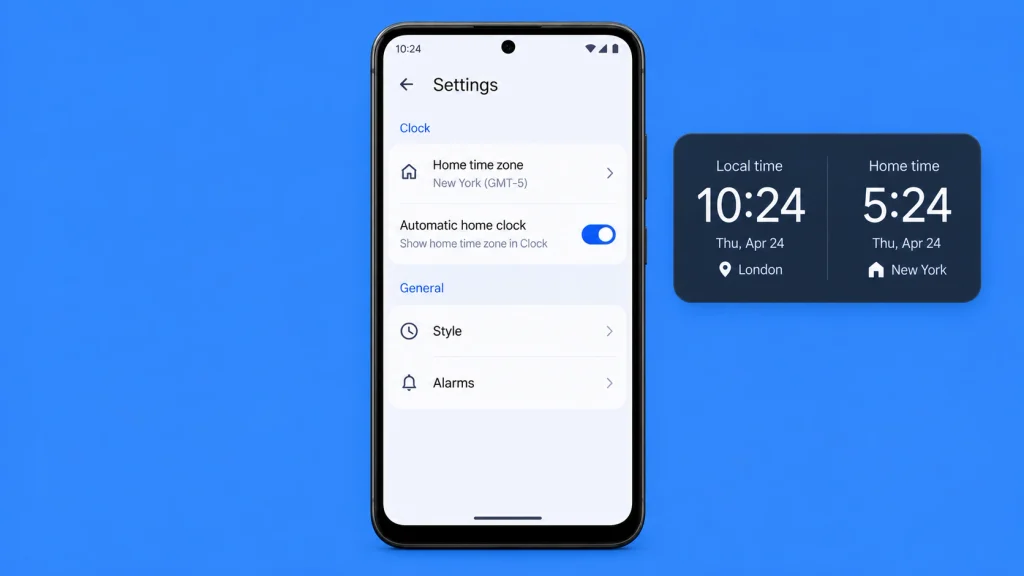
Many Android phones use Google’s Clock app, which includes a feature called Automatic home clock.
When enabled, this feature can display your home time separately when you travel to another time zone.
Turn On Automatic Home Clock
According to Google’s Clock documentation, you can set it up as follows:
- Open the Clock app.
- Tap the three-dot menu and select Settings.
- Tap Home time zone.
- Select your home region.
- Turn on Automatic home clock.
When your phone detects that you’re in another time zone, the Clock app can display your home time alongside the local time.
You don’t need to disable automatic time-zone detection for your phone.
Note: Android manufacturers use different Clock apps. If you can’t find Automatic home clock, your device may offer another feature or widget instead.
Add a Home-Time Widget on Android
If you’d rather keep home time visible on your Home Screen, try adding a Clock or World Clock widget.
- Open your Clock app.
- Find World Clock and add your home city, if supported.
- Touch and hold an empty area of your Home Screen.
- Tap Widgets.
- Look for Clock or World Clock.
- Select an available widget and add it to your Home Screen.
- Configure the city if the widget offers that option.
Some widgets display one city, while others show multiple locations.
The exact options depend on your Android version, phone manufacturer, and Clock app.
How to Show Two Time Zones on Samsung Galaxy
Samsung Galaxy phones offer two useful options for travelers:
- Dual clock: Displays two selected cities on your Home Screen.
- Roaming clock: Displays home and local time on the Lock Screen when supported roaming conditions are detected.
Add the Samsung Dual Clock Widget
Samsung’s Dual clock widget is useful if you want to check two time zones throughout the day.
To set it up:
- Touch and hold an empty area on your Home Screen.
- Tap Widgets.
- Open Clock.
- Find Dual clock.
- Select a layout and tap Add.
- Touch and hold the widget and open Settings, if needed.
- Set the first city to your home location and the second to your destination.
- Save your changes.
Your Home Screen should now display the time in both cities.
You can change the selected cities later through the widget settings.
Remember: A manually configured Dual clock widget won’t necessarily update its destination city when you travel somewhere else. Check the city settings when you arrive at a new destination.
Enable Samsung’s Roaming Clock
Samsung also provides a Roaming clock feature on supported Galaxy phones.
It’s designed to show home and local time on the Lock Screen while roaming. On supported devices, it may also appear on the Always On Display.
Following Samsung’s Roaming clock guide:
- Open Settings.
- Go to Lock screen and AOD > Roaming clock.
- Turn on Roaming clock.
- Select your home region.
On some older Galaxy devices, this setting appears directly under Lock screen.
Unlike the Dual clock widget, Roaming clock is intended for travel and may not appear when you’re in your normal home time zone.
If it doesn’t appear, use the Dual clock widget instead.
Menu names and availability vary by Samsung model and One UI version.
Can You Keep Your Phone’s Main Clock on Home Time While Traveling?
Yes. You can manually select your home time zone so your phone’s main clock continues showing home time while you’re abroad.
However, keeping your main clock on home time is different from adding a second clock.
Changing your system time zone affects how your phone displays time and can make local alarms, appointments, and travel schedules harder to interpret.
For most travelers, leaving the main clock on local time is the safer and more convenient choice.
Keep Your iPhone’s Main Clock on Home Time
On newer iOS versions that provide separate time-zone controls:
- Open Settings > General > Date & Time.
- Turn off Set Time Zone Automatically.
- Tap Time Zone City.
- Search for and select your home city.
- Confirm that your main clock displays home time.
On older iOS versions, the steps may be different:
- Open Settings > General > Date & Time.
- Turn off Set Automatically.
- Tap Time Zone.
- Search for your home city and select it.
See Apple’s date and time guide for additional information.
You should select the appropriate time zone rather than manually changing the hour or minute.
Keep Your Android Phone’s Main Clock on Home Time
On many Android devices:
- Open Settings.
- Go to System > Date & time, or search Settings for Date and time.
- Turn off Automatic time zone or Set time zone automatically.
- Tap Time zone.
- Select your home region.
- Check that the main clock shows the expected time.
On Samsung Galaxy phones, these settings are commonly found under Settings > General management > Date and time.
If your phone provides separate controls for automatic time synchronization and automatic time-zone selection, you can generally leave automatic time synchronization enabled.
Important: If you manually keep your phone on home time, remember that its displayed time won’t match the local time at your destination. Check travel schedules and alarms carefully.
Will Your Alarms and Calendar Events Follow Home Time or Local Time?
Adding a World Clock city or widget doesn’t change your phone’s system time zone, so it won’t change your alarms or calendar settings.
However, manually changing the system time zone requires more attention.
What Happens to Alarms When You Travel?
Suppose you set an alarm for 7:00 AM before leaving home.
If your phone automatically switches to your destination’s time zone, a standard Clock app alarm will generally ring at 7:00 AM local time.
But if you manually keep your system time zone set to home, the alarm’s displayed time may not correspond to 7:00 AM at your destination.
Third-party alarm apps can also behave differently.
Before an important flight, meeting, or hotel checkout, open your Clock app and confirm that the alarm is set for the intended local time.
What Happens to Calendar Events?
Calendar apps may store events with their own time zones and display them according to your device or calendar settings.
For example, a meeting scheduled for 3:00 PM in New York can appear at a different hour when viewed in London.
On supported iPhones, Apple provides a separate setting:
Settings > Apps > Calendar > Time Zone Override
This lets you display Calendar events in a selected time zone independently of your phone’s main time-zone setting.
Read Apple’s Calendar time-zone guide for details.
For international meetings, always specify the date and time zone. Writing “3 PM New York time” is clearer than simply writing “3 PM.”
Choose a City With the Correct Time Zone
Not every Clock app includes every town or city.
If your hometown isn’t available, choose another city that follows the same time zone and daylight saving rules.
Don’t select a city simply because its clock shows the same time today.
Two cities might share the same UTC offset now but follow different daylight saving schedules. Their clocks could display different times later in the year.
The IANA Time Zone Database maintains information about time-zone changes and daylight saving rules.
Keeping your phone’s software updated can help it apply these changes correctly.
Remember to Check the Date, Not Just the Time
When comparing two countries, remember that they may be on different calendar days.
For example:
| City | Local time |
|---|---|
| Tokyo | 12:30 AM Tuesday |
| Dubai | 7:30 PM Monday |
Although the clocks are only five hours apart, the dates are different.
This matters when arranging international calls or meetings.
Instead of saying “tomorrow evening,” agree on a specific date, time, and city, such as “Tuesday at 8 PM Dubai time.”
How to Fix Incorrect Home Time on Your Phone
If your home clock displays an unexpected time, check these common problems before changing your phone’s system settings.
Both Clocks Show the Same Time
Check the cities selected in your widget. Some widgets have their own city settings and don’t automatically follow your World Clock list.
If both cities are correct, they may genuinely share the same current UTC offset.
Your Home Clock Disappears
Google’s Automatic home clock is designed to appear when you’re in another time zone. Samsung’s Roaming clock also depends on supported roaming conditions.
If you want home time to remain visible even when you’re not traveling, use a manually configured World Clock widget.
Your Home Time Is Off by One Hour
The selected city might follow different daylight saving rules from your actual home location.
Check the city and install any available software updates.
Avoid manually adjusting the hour to compensate for the wrong time-zone selection.
Your Main Phone Clock Shows the Wrong Time
If your phone should display local time but doesn’t, check whether automatic time-zone selection is enabled.
- iPhone: Open Settings > General > Date & Time.
- Android: Open Settings > Date and time, or find the equivalent option through Settings search.
If the time is still incorrect, check your internet connection and applicable location settings.
To understand why phones change time zones automatically when traveling, read our guide: Why Your Phone Time Changes Automatically When You Travel.
What Should You Do When You Return Home?
If you only added a home city to World Clock or used a widget, there’s usually nothing to change.
Your phone’s main clock can continue adjusting automatically, and your saved cities remain available for future trips.
However, if you manually changed the system time zone, open your Date & Time settings and enable automatic time-zone selection again.
Check any upcoming alarms or calendar appointments afterward.
A Quick Way to Compare Home and Local Time
You don’t always need to change phone settings or install another app to compare time zones.
With the free NavigationHubs World Clock, you can check the current time in your home city and travel destination in one place.
It’s especially useful when planning calls with family, coordinating with colleagues, or checking whether it’s a convenient time to contact someone abroad.
The tool uses your device clock and browser time-zone data rather than an independent time server, so it isn’t intended to correct an inaccurate device clock.
Whether you use your phone’s World Clock, a widget, or an online tool, the most important thing is to check both the time and date before scheduling something across countries.
That way, when someone says “Call me at eight,” you both know exactly when eight is.