How to Use the Interactive Card Generator
Looking for a No Button Runs Away Website you can customize and share with anyone? NavigationHubs lets you create a funny interactive card for free. Turn your question into a Yes or No game online, personalize the card, and send the link to friends or someone special.
How to Create a Card and Share It With Friends
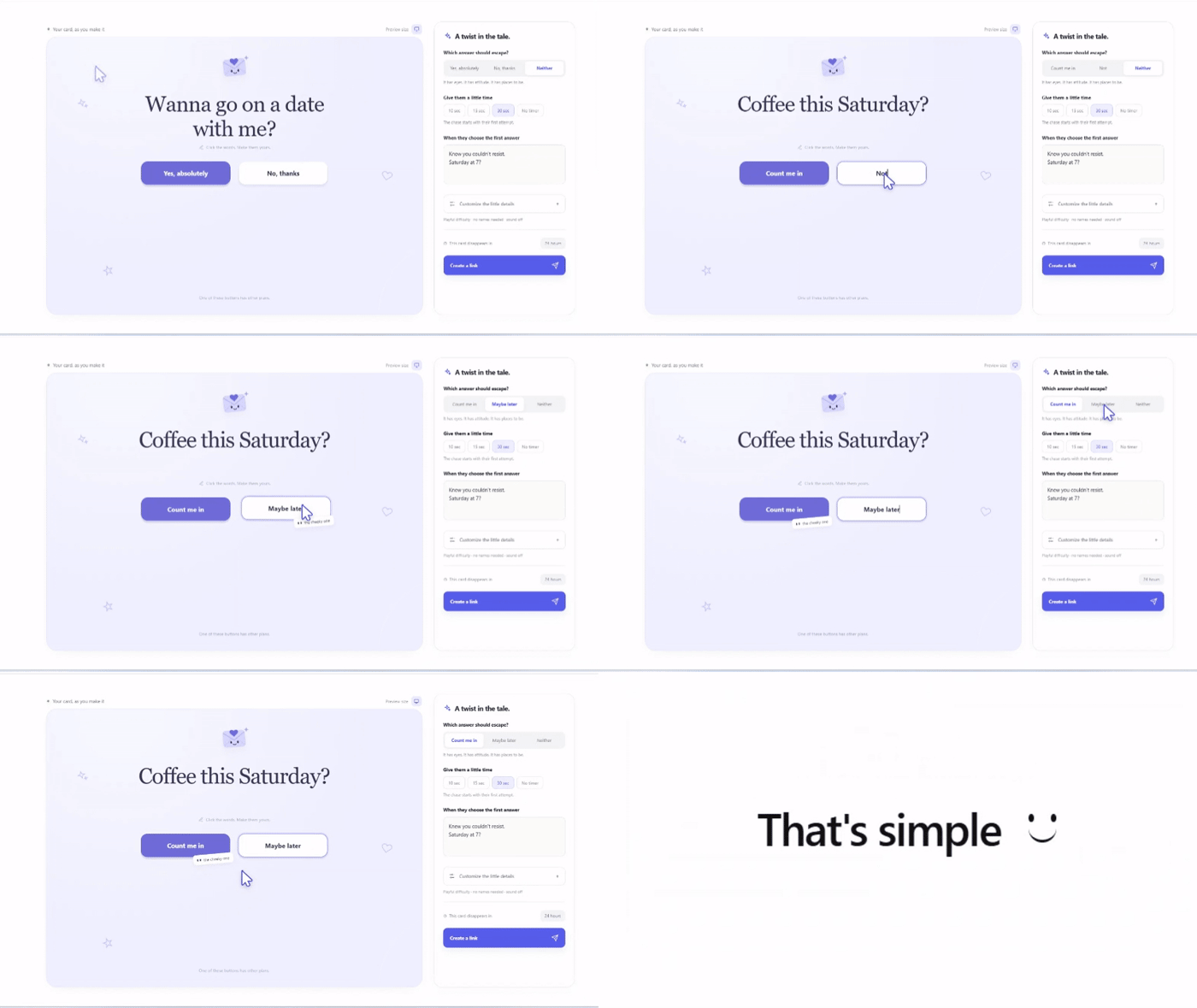
Write your question and customize the two answers. Keep the familiar Yes and No, or use your own wording, such as “Absolutely” and “Not a chance.”
Choose which answer should escape, then preview your card to see how it feels. When it is ready, select Create a link and copy the card link.
Send your personalized question link through a message, email, or group chat. The recipient opens the card and gets to answer your question, with a little chasing along the way.
How to Design Your Card
Give your card a style that matches the message. A romantic invitation, a birthday surprise, and a playful friendship question do not need to look the same.
Use the Style settings to adjust the typography, button shape, illustration, and confetti. Keep the question easy to read and the design focused on the person receiving it.
A short question often works better than a long message. Save the extra details, such as where you want to meet or what the surprise is, for the ending.
How to Use a Ready-Made Design
Not sure where to start? Choose a ready-made design, then replace the question and answers with your own.
Treat the design as a starting point rather than a finished message. A familiar phrase, a nickname, or a reference to an inside joke can make the card feel personal without changing every setting.
This is also a simple way to try different looks before deciding which one suits your question.
How to Add an Image and a Voice Message
An image can give your question context before the recipient reads a word. Use a shared photo, a funny picture, or something connected to the invitation.
In Media, upload a PNG, JPG, or WebP image up to 3 MB.
You can also record or upload a voice message up to 10 seconds. It plays at the ending, although browser restrictions may require the recipient to tap first.
Use the voice note to reveal a birthday wish, explain the next part of a surprise, or say something that sounds better in your own voice.
Keep it simple. A short invitation can be enough:
- “Coffee on Saturday?”
- “Ready for your birthday surprise?”
How to Use Advanced Customizations
The extra settings let you change more than the appearance of your card.
Choose the escaping answer. Make the first answer, the second answer, or neither button move. The No button does not always have to be the mischievous one.
Adjust the chase. Choose Playful, Hard, or Impossible difficulty. Set a 10-, 15-, or 30-second chase, or choose no timer.
Write different endings. Customize the messages for each answer and for a timeout. Use them to reveal an invitation, finish a joke, or add a personal message.
Set the finishing details. Adjust optional sound effects, sender-name visibility, and guest nicknames.
You do not need to use every setting. Start with the question and design, then add the details that make the experience better for the recipient.
How to View Responses to Your Card
Open My cards to find your cards and check their responses. You can create different cards for different people or occasions and keep them together in the browser where you created them.
Keep the private creator link to manage a card from another browser or device.
Share the card link with recipients, not the private creator link. Think of one as the invitation and the other as your access to manage it.
Save or Share the Reactions
After people answer your card, you can turn the results into a small shareable image. Customize the dashboard title, hide guest names if you prefer, then save the image as a keepsake or share it with the group.
What Is a No Button Runs Away Website?
A No Button Runs Away website turns a question into a small interactive game. The recipient sees two answers, but when they try to select the moving No button, it escapes to another position.
The surprise is in the interaction. What looks like an ordinary question suddenly becomes a chase.
With NavigationHubs, you choose the question, answers, design, and message. That makes the tool more than a fixed joke. Your custom question link can become a date invitation, a friendship challenge, a romantic message, or an interactive digital card for a special occasion.
The runaway No button is part of the fun, not a way to decide someone’s answer for them. Recipients can use the normal-answer option instead of chasing.
What Can You Create With Your Yes or No Game?
The best question is usually one that means something to the person opening it. Start with an occasion, a shared joke, or something you have been meaning to ask.
How to Propose Online With a Personalized Card
Use the tool as a date proposal maker to turn a simple invitation into something more personal.
Start with a clear question, such as:
- “Will you go on a date with me?”
- “Coffee together this weekend?”
- “Dinner and a movie on Friday?”
Add a design that suits the mood, then use the ending to suggest a place or time.
For a romantic message, use it as a love proposal maker with a shared photo and a short voice note. You do not need a long speech. A few words that sound like you will feel more personal than a copied paragraph.
Before sending your proposal link, preview both answers and their endings. Keep the invitation warm and leave room for an honest response.
Create a “Will You Be My Valentine?” Yes or No Website
Build a free Valentine proposal website around a question that suits your relationship:
- “Will you be my Valentine?”
- “Can I take you out this Valentine’s Day?”
- “Will you spend Valentine’s evening with me?”
Personalize it with a photo, your own answer labels, and a message for the ending. Keep it romantic, make it funny, or include a reference that only the two of you will understand.
Your Valentine card does not have to stop at the question. Use the ending to suggest dinner, a movie, or a quiet evening together.
For a simple Valentine surprise, let the question do the work and save your voice message for the final moment. The result is a shareable card with more personality than a plain text invitation.
Make a Funny Link to Send Friends
Turn an inside joke into a funny question for friends.
Try something like:
- “Are you buying the pizza tonight?”
- “Do you admit I won that argument?”
- “Are we finally booking that trip?”
- “Will you let me choose the movie this time?”
A friendship game works best when the question already means something to the group. Add a familiar image, change the answer labels, and write an ending that finishes the joke.
You can also use the tool as a prank link generator for a harmless surprise. Keep the joke light and make it something the recipient can enjoy too. A dodging No button is enough of a trick without embarrassing anyone.
Create a Personalized Promposal
Make a simple promposal website with a question such as:
- “Will you go to prom with me?”
- “Can I be your prom date?”
- “Shall we make prom a night to remember?”
Add a photo or a message connected to the two of you. Your prom invitation could reference a favorite song, a shared memory, or a joke from school.
Keep the main question short. Use the ending for the personal message that makes the promposal yours.
Send a Birthday Surprise Link
Turn a birthday card into a small interactive surprise.
Start with a question such as:
- “Ready for your birthday surprise?”
- “Can you guess what we planned for your birthday?”
- “Will you join us for a birthday adventure?”
Use the ending to reveal a birthday wish, a celebration plan, or a clue about a gift.
Add a photo from a shared memory and record the message in your own voice. A birthday surprise link can also become an invitation, with the party details revealed after the question.
The same card format can also work for anniversaries, party invitations, apologies, congratulations, dinner plans, coffee invitations, inside jokes, friendly challenges, and other small surprises.
What Makes a Good Interactive Card?
Make the Question Personal
A specific question gives the recipient something more personal to respond to. Compare these examples:
- Simple: “Want to get coffee?”
- More personal: “Coffee at our usual place on Saturday?”
You do not need to write more. A familiar place, a shared memory, or a small detail can make the question feel like it was written just for them.
Keep the Main Message Short
The card should make sense at a glance. Put extra details in the ending rather than squeezing everything into the question.
Let the design, image, and voice message support the question instead of competing with it.
Give Each Ending Some Thought
A custom message should suit the answer someone actually chooses. The joke should still make sense when the result is not the one you expected.
For an invitation, use the ending to explain the next step. For a friendship challenge, use it to finish the joke. For a birthday card, make it the moment the surprise is revealed.
Preview Before Sharing
Read the question, check the design, and try the experience yourself. Make sure the image and voice message fit the person and occasion.
A funny game does not need to be complicated. Often, one good question and one familiar detail are enough.
Frequently Asked Questions
Is the Interactive Card Generator Free?
Yes. Creating and sharing a card is free. Start with a simple question or personalize the design and message before sending it.
Do the Answers Have to Be Yes and No?
No. Customize both answer labels to match your question. A Yes or No game is one option, but you can also use playful answers such as “Pizza, obviously” and “Let me think.”
Can I Make the Yes Button Run Away Instead?
Yes. Choose the answer you want to move. You can reverse the usual runaway No button effect or keep both answers still.
Does the Game Work on Phones?
Yes. On phones and tablets, players tap the escaping button and follow it to its next position. They can also answer without chasing.
Does Running Out of Time Count as Saying Yes?
No. A timeout is recorded separately, not as an answer.
Who Can Open My Card and See the Results?
Anyone with the card link can open it. The creator and players who complete that card can see its results and optional nicknames. Nicknames are self-entered, not verified identities.
Avoid including private information in your question, image, or voice message.
How Long Does a Shared Card Last?
Choose the card lifetime when creating it. The card and its uploads expire together, so check the lifetime before sending an invitation someone may open later.
Create a Question Worth Opening
Make someone laugh, ask them out, or send a message that feels like you. Start with your question, give the card a personal touch, and share the link.
Create Your Free Card